
Este blog faz parte de uma série de blogs em várias partes que mostra como executar suas aplicações no Kubernetes. Ele usará o Couchbase, um banco de dados de documentos distribuído NoSQL de código aberto, como o contêiner Docker.
A primeira parte (Couchbase no Kubernetes) explicou como iniciar o cluster Kubernetes usando o Vagrant. A segunda parte (Kubernetes na Amazonexplicou como executar essa configuração no Amazon Web Services.
Esta terceira parte mostrará:
- Como configurar e iniciar o cluster do Kubernetes no Google Cloud
- Executar o container Docker no cluster Kubernetes
- Expor Pod no Kubernetes como Serviço
- Desligar o cluster
Aqui está uma visão geral rápida:
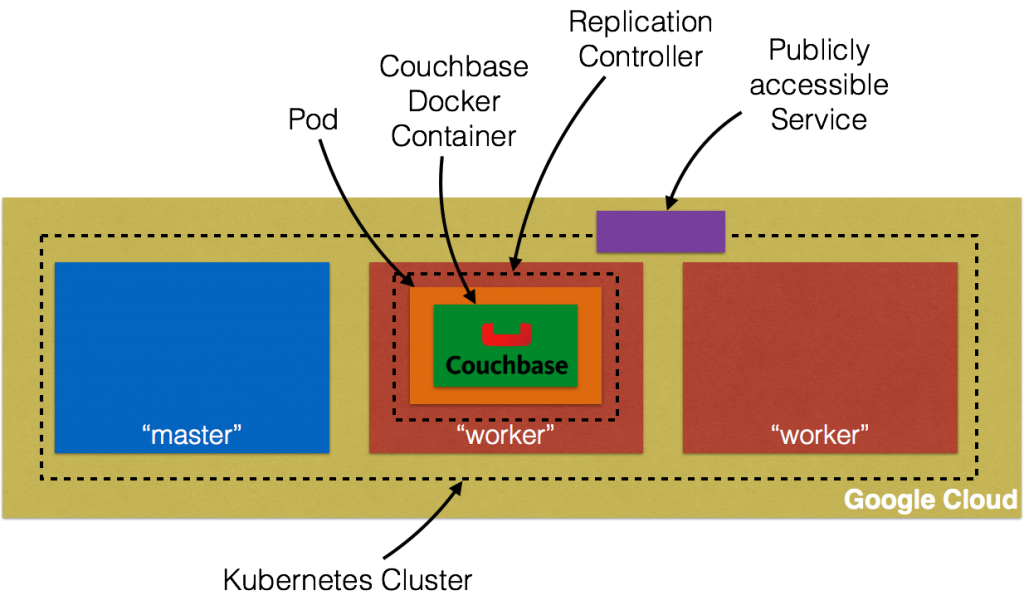
Vamos entrar em detalhes!
Primeiros passos com o Google Compute Engine Forneça instruções detalhadas sobre como configurar o Kubernetes no Google Cloud.
Baixar e Configurar o SDK do Google Cloud
É necessário um pouco de configuração se você nunca acessou o Google Cloud na sua máquina. Isso foi um pouco complicado e tomara que possa ser simplificado.
- Criar uma conta faturável em Google Cloud
- Instalar Google Cloud SDK
- Configurar credenciais: gcloud auth login
- Crie um novo projeto no Google Cloud e dê a ele o nome de
couchbase-on-kubernetes - Definir o projeto:
gcloud config set project couchbase-on-kubernetes - Definir zona padrão:
gcloud config set compute/zone us-central1-a - Criar uma instância:
gcloud compute instances create example-instance --machine-type n1-standard-1 --image debian-8 - Acesse a instância via SSH:
gcloud compute ssh example-instance - Excluir a instância:
gcloud compute instances delete example-instance
Configurar cluster do Kubernetes no Google Cloud
O cluster do Kubernetes pode ser criado no Google Cloud como:
|
1 2 |
definir KUBERNETES_PROVIDER=gce ./aglomerado/kube–Para cima.sh |
Certifique-se KUBERNETES_PROVIDER está definido como gce ou não ser definido. Por padrão, isso provisiona um cluster Kubernetes de 4 nós com um master. Isso significa que 5 Máquinas Virtuais são criadas.
Se você baixou o Kubernetes do github.com/kubernetes/kubernetes/releases, então todos os valores podem ser alterados em cluster/aws/config-default.sh.
Iniciar o Kubernetes no Google Cloud mostra o seguinte log. O Google Cloud SDK estava se comportando de forma um pouco estranha, mas aceitar os padrões parece funcionar:
|
1 2 3 4 5 6 7 8 9 10 11 12 13 14 15 16 17 18 19 20 21 22 23 24 25 26 27 28 29 30 31 32 33 34 35 36 37 38 39 40 41 42 43 44 45 46 47 48 49 50 51 52 53 54 55 56 57 58 59 60 61 62 63 64 65 66 67 68 69 70 71 72 73 74 75 76 77 78 79 80 81 82 83 84 85 86 87 88 89 90 91 92 93 94 95 96 97 98 99 100 101 102 103 104 105 106 107 108 109 110 111 112 113 114 115 116 117 118 119 120 121 122 123 124 125 126 127 128 129 130 131 132 133 134 135 136 137 138 139 140 141 142 143 144 145 146 147 148 149 150 151 152 153 154 155 156 157 158 159 160 161 162 163 164 165 166 167 168 169 170 171 172 173 174 175 176 177 178 179 180 181 182 183 |
./Kubernetes/aglomerado/kube–Para cima.sh ... Iniciando aglomerado usando provedor: gce ... ligando verificar–pré-requisitos Você ter especificado individual componentes para atualizar. Se você estão tentando para instalar novo componentes, usar: $ gcloud componentes instalar alfa Fazer você querer para correr instalar em vez disso (y/N)? Seu atual Nuvem SDK versão é: 99.0.0 Instalando componentes de versão: 99.0.0 ┌──────────────────────────────────────────────┐ │ Estes componentes testamento ser instalado. │ ├───────────────────────┬────────────┬─────────┤ │ Nome │ Versão │ Tamanho │ ├───────────────────────┼────────────┼─────────┤ │ gcloud Alfa Comandos │ 2016.01.12 │ < 1 MIB │ └───────────────────────┴────────────┴─────────┘ Para o mais recente cheio lançamento notas, por favor visita: https://cloud.google.com/sdk/release_notes Fazer você querer para continuar (Y/n)? ╔════════════════════════════════════════════════════════════╗ ╠═ Criando atualizar staging area ═╣ ╠════════════════════════════════════════════════════════════╣ ╠═ Instalando: gcloud Alfa Comandos ═╣ ╠════════════════════════════════════════════════════════════╣ ╠═ Criando backup e activating novo installation ═╣ ╚════════════════════════════════════════════════════════════╝ Performing post processing etapas...done. Update done! Você ter especificado individual componentes para atualizar. Se você estão tentando para instalar novo componentes, usar: $ gcloud componentes instalar beta Fazer você querer para correr instalar em vez disso (y/N)? Seu atual Nuvem SDK versão é: 99.0.0 Instalando componentes de versão: 99.0.0 ┌─────────────────────────────────────────────┐ │ Estes componentes testamento ser instalado. │ ├──────────────────────┬────────────┬─────────┤ │ Nome │ Versão │ Tamanho │ ├──────────────────────┼────────────┼─────────┤ │ gcloud Beta Comandos │ 2016.01.12 │ < 1 MIB │ └──────────────────────┴────────────┴─────────┘ Para o mais recente cheio lançamento notas, por favor visita: https://cloud.google.com/sdk/release_notes Fazer você querer para continuar (Y/n)? ╔════════════════════════════════════════════════════════════╗ ╠═ Criando atualizar staging area ═╣ ╠════════════════════════════════════════════════════════════╣ ╠═ Instalando: gcloud Beta Comandos ═╣ ╠════════════════════════════════════════════════════════════╣ ╠═ Criando backup e activating novo installation ═╣ ╚════════════════════════════════════════════════════════════╝ Performing post processing etapas...done. Update done! Todos componentes estão Para cima para data. ... ligando kube–Para cima Seu active configuration é: [predefinição] Project: Couchbase–ligado–Kubernetes Zone: us–central1–b Criando gs://kubernetes-staging-9479406781 Criando gs://kubernetes-staging-9479406781/… +++ Staging server tars para Google Armazenamento: gs://kubernetes-staging-9479406781/devel +++ Kubernetes–server–Linux–amd64.alcatrão.parabéns uploaded (sha1 = 1ff42f7c31837851d919a66fc07f34b9dbdacf28) +++ Kubernetes–salt.alcatrão.parabéns uploaded (sha1 = f307380ad6af7dabcf881b132146fa775c18dca8) Looking para already existing resources Iniciando master e configuring firewalls Created [https://www.googleapis.com/compute/v1/projects/couchbase-on-kubernetes/zones/us-central1-b/disks/kubernetes-master-pd]. NAME ZONE SIZE_GB TYPE STATUS Kubernetes–master–pd us–central1–b 20 pd–ssd READY Created [https://www.googleapis.com/compute/v1/projects/couchbase-on-kubernetes/regions/us-central1/addresses/kubernetes-master-ip]. Created [https://www.googleapis.com/compute/v1/projects/couchbase-on-kubernetes/global/firewalls/default-default-ssh]. Created [https://www.googleapis.com/compute/v1/projects/couchbase-on-kubernetes/global/firewalls/kubernetes-master-https]. NAME NETWORK SRC_RANGES RULES SRC_TAGS TARGET_TAGS predefinição–predefinição–ssh predefinição 0.0.0.0/0 tcp:22 NAME NETWORK SRC_RANGES RULES SRC_TAGS TARGET_TAGS Kubernetes–master–https predefinição 0.0.0.0/0 tcp:443 Kubernetes–master +++ Registro usando Fluentd para GCP ./Kubernetes/aglomerado/../aglomerado/../aglomerado/gce/util.sh: linha 434: @: unbound variável ./Kubernetes/aglomerado/../aglomerado/../aglomerado/gce/util.sh: linha 434: @: unbound variável ./Kubernetes/aglomerado/../aglomerado/../aglomerado/gce/util.sh: linha 434: @: unbound variável ./Kubernetes/aglomerado/../aglomerado/../aglomerado/gce/util.sh: linha 434: @: unbound variável Created [https://www.googleapis.com/compute/v1/projects/couchbase-on-kubernetes/global/firewalls/default-default-internal]. NAME NETWORK SRC_RANGES RULES SRC_TAGS TARGET_TAGS predefinição–predefinição–internal predefinição 10.0.0.0/8 tcp:1–65535,udp:1–65535,icmp Created [https://www.googleapis.com/compute/v1/projects/couchbase-on-kubernetes/global/firewalls/kubernetes-minion-all]. NAME NETWORK SRC_RANGES RULES SRC_TAGS TARGET_TAGS Kubernetes–minion–todos predefinição 10.244.0.0/16 tcp,udp,icmp,esp,ah,sctp Kubernetes–minion Created [https://www.googleapis.com/compute/v1/projects/couchbase-on-kubernetes/zones/us-central1-b/instances/kubernetes-master]. NAME ZONE MACHINE_TYPE PREEMPTIBLE INTERNAL_IP EXTERNAL_IP STATUS Kubernetes–master us–central1–b n1–standard–1 10.128.0.2 104.197.213.249 RUNNING Criando minions. ./Kubernetes/aglomerado/../aglomerado/../aglomerado/gce/util.sh: linha 434: @: unbound variável ./Kubernetes/aglomerado/../aglomerado/../aglomerado/gce/util.sh: linha 434: @: unbound variável Attempt 1 para criar Kubernetes–minion–template WARNING: Você ter selected a disk size de sob [200GB]. Este may resultado em poor I/O performance. Para mais information, see: https://developers.google.com/compute/docs/disks/persistent-disks#pdperformance. Created [https://www.googleapis.com/compute/v1/projects/couchbase-on-kubernetes/global/instanceTemplates/kubernetes-minion-template]. NAME MACHINE_TYPE PREEMPTIBLE CREATION_TIMESTAMP Kubernetes–minion–template n1–standard–1 2016–03–03T14:01:14.322–08:00 Created [https://www.googleapis.com/compute/v1/projects/couchbase-on-kubernetes/zones/us-central1-b/instanceGroupManagers/kubernetes-minion-group]. NAME ZONE BASE_INSTANCE_NAME SIZE TARGET_SIZE INSTANCE_TEMPLATE AUTOSCALED Kubernetes–minion–grupo us–central1–b Kubernetes–minion 4 Kubernetes–minion–template Waiting para grupo para tornar-se stable, atual operações: creating: 4 Waiting para grupo para tornar-se stable, atual operações: creating: 4 Waiting para grupo para tornar-se stable, atual operações: creating: 4 Waiting para grupo para tornar-se stable, atual operações: creating: 4 Waiting para grupo para tornar-se stable, atual operações: creating: 4 Waiting para grupo para tornar-se stable, atual operações: creating: 4 Waiting para grupo para tornar-se stable, atual operações: creating: 3 Group é stable MINION_NAMES=Kubernetes–minion–1hmm Kubernetes–minion–3x1d Kubernetes–minion–h1ov Kubernetes–minion–nshn Using master: Kubernetes–master (externo IP: 104.197.213.249) Waiting para aglomerado initialization. Este testamento continually check para see se o API para Kubernetes é reachable. Este might loop forever se there was some uncaught erro during start Para cima. Kubernetes aglomerado created. aglomerado “couchbase-on-kubernetes_kubernetes” definir. usuário “couchbase-on-kubernetes_kubernetes” definir. contexto “couchbase-on-kubernetes_kubernetes” definir. switched para contexto “couchbase-on-kubernetes_kubernetes”. usuário “couchbase-on-kubernetes_kubernetes-basic-auth” definir. Wrote configuração para Couchbase–ligado–kubernetes_kubernetes para /Users/arungupta/.kube/configuração Kubernetes aglomerado é running. A master é running at: https://104.197.213.249 A usuário nome e senha para usar é located em /Users/arungupta/.kube/configuração. ... ligando validate–aglomerado Waiting para 4 ready nodes. 0 ready nodes, 0 registered. Retrying. Waiting para 4 ready nodes. 0 ready nodes, 2 registered. Retrying. Waiting para 4 ready nodes. 0 ready nodes, 3 registered. Retrying. Waiting para 4 ready nodes. 0 ready nodes, 4 registered. Retrying. Waiting para 4 ready nodes. 3 ready nodes, 4 registered. Retrying. Waiting para 4 ready nodes. 3 ready nodes, 4 registered. Retrying. Found 4 nó(s). NAME LABELS STATUS AGE Kubernetes–minion–1hmm Kubernetes.io/hostname=Kubernetes–minion–1hmm Ready 1m Kubernetes–minion–3x1d Kubernetes.io/hostname=Kubernetes–minion–3x1d Ready 52s Kubernetes–minion–h1ov Kubernetes.io/hostname=Kubernetes–minion–h1ov Ready 1m Kubernetes–minion–nshn Kubernetes.io/hostname=Kubernetes–minion–nshn Ready 1m Validate output: NAME STATUS MESSAGE ERRO controlador–manager Healthy ok nil scheduler Healthy ok nil etcd–0 Healthy {“health”: “verdadeiro”} nil etcd–1 Healthy {“health”: “verdadeiro”} nil Aglomerado validation succeeded Done, listing aglomerado serviços: Kubernetes master é running at https://104.197.213.249 GLBCDefaultBackend é running at https://104.197.213.249/api/v1/proxy/namespaces/kube-system/services/default-http-backend Heapster é running at https://104.197.213.249/api/v1/proxy/namespaces/kube-system/services/heapster KubeDNS é running at https://104.197.213.249/api/v1/proxy/namespaces/kube-system/services/kube-dns KubeUI é running at https://104.197.213.249/api/v1/proxy/namespaces/kube-system/services/kube-ui Grafana é running at https://104.197.213.249/api/v1/proxy/namespaces/kube-system/services/monitoring-grafana InfluxDB é running at https://104.197.213.249/api/v1/proxy/namespaces/kube-system/services/monitoring-influxdb |
There are a couple of unbound variables and a WARNING message, but that didn’t seem to break the script. Google Cloud Console shows: 
Five instances are created as shown – one for master node and four for worker nodes.
Run Docker Container in Kubernetes Cluster on Google Cloud
Now that the cluster is up and running, get a list of all the nodes:
|
1 2 3 4 5 6 |
./Kubernetes/aglomerado/kubectl.sh obter não NAME LABELS STATUS AGE Kubernetes–minion–1hmm Kubernetes.io/hostname=Kubernetes–minion–1hmm Ready 47m Kubernetes–minion–3x1d Kubernetes.io/hostname=Kubernetes–minion–3x1d Ready 46m Kubernetes–minion–h1ov Kubernetes.io/hostname=Kubernetes–minion–h1ov Ready 47m Kubernetes–minion–nshn Kubernetes.io/hostname=Kubernetes–minion–nshn Ready 47m |
It shows four worker nodes. Create a Couchbase pod:
|
1 2 |
./Kubernetes/aglomerado/kubectl.sh correr Couchbase —image=arungupta/Couchbase replicationcontroller “couchbase” created |
Notice, how the image name can be specified on the CLI. This command creates a Replication Controller with a single pod. The pod uses arungupta/couchbase Docker image that provides a pre-configured Couchbase server. Any Docker image can be specified here.
Get all the RC resources:
|
1 2 3 |
./Kubernetes/aglomerado/kubectl.sh obter rc CONTROLLER CONTAINER(S) IMAGE(S) SELECTOR REPLICAS AGE Couchbase Couchbase arungupta/Couchbase correr=Couchbase 1 48s |
This shows the Replication Controller that is created for you.
Get all the Pods:
|
1 2 3 |
./Kubernetes/aglomerado/kubectl.sh obter po NAME READY STATUS RESTARTS AGE Couchbase–s8v9r 1/1 Running 0 1m |
The output shows the Pod that is created as part of the Replication Controller.
Get more details about the Pod:
|
1 2 3 4 5 6 7 8 9 10 11 12 13 14 15 16 17 18 19 20 21 22 23 24 25 26 27 28 29 30 31 32 33 34 35 36 37 38 39 40 41 42 43 44 |
./Kubernetes/aglomerado/kubectl.sh describe po Couchbase–s8v9r Nome: Couchbase–s8v9r Namespace: predefinição Image(s): arungupta/Couchbase Node: Kubernetes–minion–3x1d/10.128.0.3 Start Tempo: Qui, 03 Mar 2016 14:53:36 –0800 Labels: correr=Couchbase Status: Running Reason: Message: IP: 10.244.3.3 Replicação Controllers: Couchbase (1/1 réplicas created) Containers: Couchbase: Container ID: docker://601ee2e4c822814c3969a241e37c97bf4d0d209f952f24707ab308192d289098 Image: arungupta/Couchbase Image ID: docker://298618e67e495c2535abd17b60241565e456a4c9ee96c923ecf844a9dbcccced QoS Tier: cpu: Burstable Requests: cpu: 100m State: Running Started: Qui, 03 Mar 2016 14:54:46 –0800 Ready: Verdadeiro Restart Count: 0 Environment Variables: Conditions: Tipo Status Ready Verdadeiro Volumes: predefinição–token–frsd7: Tipo: Secret (a secret aquele should populate this volume) SecretName: predefinição–token–frsd7 Events: FirstSeen LastSeen Count From SubobjectPath Reason Message ───────── ──────── ───── ──── ───────────── ────── ─────── 1m 1m 1 {kubelet Kubernetes–minion–3x1d} implicitly required contêiner POD Pulled Container image “gcr.io/google_containers/pause:0.8.0” already present ligado machine 1m 1m 1 {scheduler } Scheduled Successfully assigned Couchbase–s8v9r para Kubernetes–minion–3x1d 1m 1m 1 {kubelet Kubernetes–minion–3x1d} implicitly required contêiner POD Created Created com docker identidade c1de9da87f1e 1m 1m 1 {kubelet Kubernetes–minion–3x1d} spec.contêineres{Couchbase} Pulling Pulling image “arungupta/couchbase” 1m 1m 1 {kubelet Kubernetes–minion–3x1d} implicitly required contêiner POD Started Started com docker identidade c1de9da87f1e 29s 29s 1 {kubelet Kubernetes–minion–3x1d} spec.contêineres{Couchbase} Pulled Successfully pulled image “arungupta/couchbase” 29s 29s 1 {kubelet Kubernetes–minion–3x1d} spec.contêineres{Couchbase} Created Created com docker identidade 601ee2e4c822 29s 29s 1 {kubelet Kubernetes–minion–3x1d} spec.contêineres{Couchbase} Started Started com docker identidade 601ee2e4c822 |
Expor Pod no Kubernetes como Serviço
Now that our pod is running, how do I access the Couchbase server? You need to expose it outside the Kubernetes cluster. The kubectl expose command takes a pod, service or replication controller and expose it as a Kubernetes Service.
Let’s expose the replication controller previously created and expose it:
|
1 2 |
./Kubernetes/aglomerado/kubectl.sh expose rc Couchbase —target–porto=8091 —porto=8091 —tipo=LoadBalancer service “couchbase” exposed |
Get more details about Service:
|
1 2 3 4 5 6 7 8 9 10 11 12 13 14 15 16 17 |
./Kubernetes/aglomerado/kubectl.sh describe svc Couchbase Nome: Couchbase Namespace: predefinição Labels: correr=Couchbase Selector: correr=Couchbase Tipo: LoadBalancer IP: 10.0.37.150 LoadBalancer Ingress: 104.197.118.35 Port: 8091/TCP NodePort: 30808/TCP Endpoints: 10.244.3.3:8091 Session Affinity: Nenhum Events: FirstSeen LastSeen Count From SubobjectPath Reason Message ───────── ──────── ───── ──── ───────────── ────── ─────── 2m 2m 1 {service–controlador } CreatingLoadBalancer Criando carregar balancer 1m 1m 1 {service–controlador } CreatedLoadBalancer Created carregar balancer |
A Loadbalancer Ingress attribute gives you the IP address of the load balancer that is now publicly accessible. Wait for 3 minutes to let the load balancer settle down. Access it using port 8091 and the login page for Couchbase Web Console shows up: 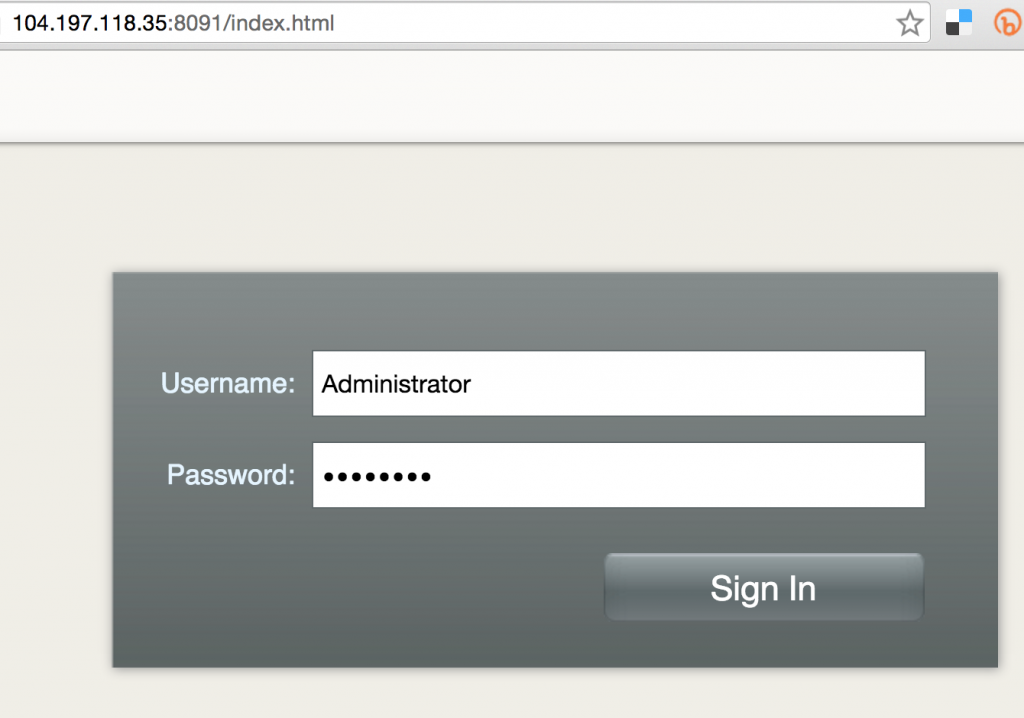
Enter the credentials as “Administrator” and “password” to see the Web Console: 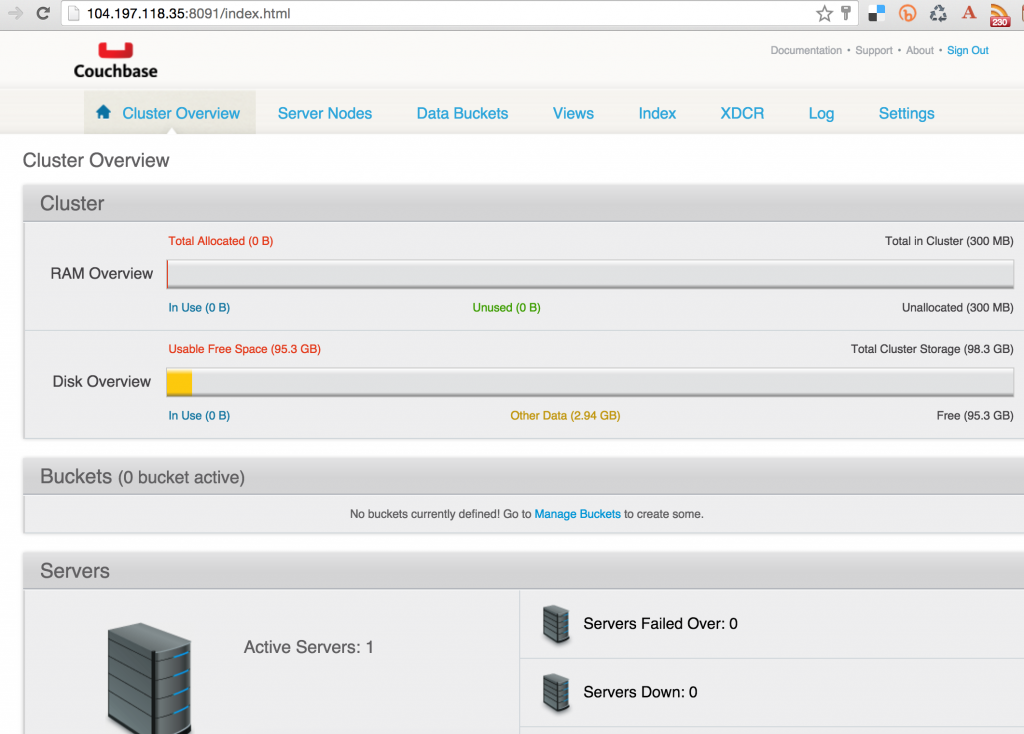
And so you just accessed your pod outside the Kubernetes cluster.
Shutdown Kubernetes Cluster
Finally, shutdown the cluster using cluster/kube-down.sh script.
|
1 2 3 4 5 6 7 8 9 10 11 12 13 14 15 16 17 18 19 20 21 22 23 24 25 26 27 28 29 30 31 32 33 34 35 36 37 38 39 40 41 |
./Kubernetes/aglomerado/kube–down.sh Bringing down aglomerado usando provedor: gce Você ter especificado individual componentes para atualizar. Se você estão tentando para instalar novo componentes, usar: $ gcloud componentes instalar alfa Fazer você querer para correr instalar em vez disso (y/N)? Todos componentes estão Para cima para data. Você ter especificado individual componentes para atualizar. Se você estão tentando para instalar novo componentes, usar: $ gcloud componentes instalar beta Fazer você querer para correr instalar em vez disso (y/N)? Todos componentes estão Para cima para data. Todos componentes estão Para cima para data. Seu active configuration é: [predefinição] Project: Couchbase–ligado–Kubernetes Zone: us–central1–b Bringing down aglomerado Deleted [https://www.googleapis.com/compute/v1/projects/couchbase-on-kubernetes/zones/us-central1-b/instanceGroupManagers/kubernetes-minion-group]. Deleted [https://www.googleapis.com/compute/v1/projects/couchbase-on-kubernetes/global/instanceTemplates/kubernetes-minion-template]. Updated [https://www.googleapis.com/compute/v1/projects/couchbase-on-kubernetes/zones/us-central1-b/instances/kubernetes-master]. Deleted [https://www.googleapis.com/compute/v1/projects/couchbase-on-kubernetes/zones/us-central1-b/instances/kubernetes-master]. Deleted [https://www.googleapis.com/compute/v1/projects/couchbase-on-kubernetes/global/firewalls/kubernetes-master-https]. Deleted [https://www.googleapis.com/compute/v1/projects/couchbase-on-kubernetes/global/firewalls/kubernetes-minion-all]. Deleting routes Kubernetes–ad3beb92–e18b–11e5–8e71–42010a800002 Deleted [https://www.googleapis.com/compute/v1/projects/couchbase-on-kubernetes/global/routes/kubernetes-ad3beb92-e18b-11e5-8e71-42010a800002]. Deleted [https://www.googleapis.com/compute/v1/projects/couchbase-on-kubernetes/regions/us-central1/addresses/kubernetes-master-ip]. property “clusters.couchbase-on-kubernetes_kubernetes” unset. property “users.couchbase-on-kubernetes_kubernetes” unset. property “users.couchbase-on-kubernetes_kubernetes-basic-auth” unset. property “contexts.couchbase-on-kubernetes_kubernetes” unset. property “current-context” unset. Cleared configuração para Couchbase–ligado–kubernetes_kubernetes de /Users/arungupta/.kube/configuração Done |
Enjoy!

Deixe um comentário
Você precisa fazer o login para publicar um comentário.