
Deploying Docker to Amazon using Tutum explained how to deploy a Docker image to Docker Tutum. Tutum is now Docker Cloud.
Read Announcing Docker Cloud for more details.

The key features of Docker Cloud are:
- Authentication using Docker ID
- Integration with Docker Hub
- Support for Docker official repositories
- Commercially supported Docker Engine
- Ability to deploy and scale your applications using GUI, API and CLI
This blog will show:
- Key concepts of Docker Cloud
- How to create a new Docker Cloud Node
- How to install Docker Cloud CLI
- How to create a new Docker Cloud Service
- Access Couchbase Server in Docker Cloud
- How to terminate the Docker Cloud Service and Node
And finally it’ll leave with some references for Docker Cloud docs.
The blog will use Servidor Couchbase – an open source, highly scalable, JSON document database for the Docker image.
Docker Cloud TL;DR
Here are the quick commands to run a Docker image using Docker Cloud in Amazon:
|
1 2 3 4 5 |
brew Instalar Docker–nube Docker–nube nodecluster crear –t 1 —tag Couchbase Couchbase–nodo aws nosotros–west–1 m3.large Docker–nube service crear —tag Couchbase –p 8091:8091 –p 8092:8092 –p 8093:8093 –p 11210:11210 arungupta/Couchbase Docker–nube service start {SERVICE_ID} Docker–nube service inspect {SERVICE_ID} | jq “.container_ports[0].endpoint_uri” | sed ‘s/tcp/http/g’ |
More details below.
Key Concepts of Docker Cloud
Let’s understand the core concepts of Docker Cloud:
- Nodes are individual Linux hosts/VMs used to deploy and run your applications. New nodes can be provisioned to increase the capacity. Docker Cloud does not provide hosting services. Nodes are provisioned using physical servers, virtual machine or cloud providers.
- Node Clusters are logical groups of nodes of the same type. Node Clusters allow to scale the infrastructure easily by provisioning more nodes.
- Services are logical groups of containers from the same image. Services make it simple to scale your application across different nodes.
Docker Cloud can be managed with Web, CLI o API REST. This blog will use the Docker Cloud CLI to perform all the commands.
Install Docker Cloud CLI
Install Docker Cloud CLI:
|
1 2 3 4 5 |
brew Instalar Docker–nube ==El resultado de tu pregunta se muestra a continuación: Downloading https://homebrew.bintray.com/bottles/docker-cloud-1.0.2.yosemite.bottle.tar.gz Already downloaded: /Library/Caches/Homebrew/Docker–nube–1.0.2.yosemite.bottle.tar.gz ==El resultado de tu pregunta se muestra a continuación: Pouring Docker–nube–1.0.2.yosemite.bottle.tar.gz ? /usr/local/Cellar/Docker–nube/1.0.2: 482 files, 4.1M |
Complete installation instructions are at Installing CLI. Check version:
|
1 2 |
Docker–nube –v Docker–nube 1.0.2 |
Complete set of commands are:
|
1 2 3 4 5 6 7 8 9 10 11 12 13 14 15 16 17 18 19 20 21 22 23 24 25 26 |
usage: Docker–nube [–h] [–v] {action,contenedor,event,exec,login,nodo,nodecluster,repositorio,run,service,stack,tag,trigger,up} ... Docker Nube CLI optional arguments: –h, —help mostrar este help message y exit –v, —versión mostrar program‘s versión number y exit Docker Nube CLI commands: {action,contenedor,event,exec,login,nodo,nodecluster,repositorio,run,service,stack,tag,trigger,up} action Action–related operations contenedor Container–related operations event Obtener real time Docker Nube eventos exec Run a command en a running contenedor login Please use “docker login” a registro into Docker Nube nodo Node–related operations nodecluster NodeCluster–related operations repositorio Repositorio–related operations run Crear y run a nuevo service service Service–related operations stack Stack–related operations tag Tag–related operations trigger Gatillo–related operations up Crear y deploy a stack |
Save the login credentials:
|
1 2 3 4 5 6 |
Docker login Username: arungupta Contraseña: Email: arun.gupta@gmail.com WARNING: login credentials saved en /Users/arungupta/.Docker/configuración.json Login Succeeded |
Create new Docker Cloud Node
Register your cloud provider credentials with Docker Cloud Web UI as explained in Link to a Cloud Service Provider. Amazon, Digital Ocean, Azure, and other cloud providers are supported.
Create a new node cluster with a single node:
|
1 2 |
Docker–nube nodecluster crear –t 1 —tag Couchbase Couchbase–nodo aws nosotros–west–1 m3.large 42a34e04–02e1–47be–bf87–ec06e0e0b604 |
This node cluster has a single node (-t 1) and uses the tag “couchbase” (--tag couchbase). Last four parameters are nodecluster name (couchbase-node, provider (aws, region (us-west-1 and nodetype (m3.large).
Each node in this node cluster will be given the assigned tag. This will be used later to assign services to a specific node or node cluster.
Status of this node cluster can be checked:
|
1 2 3 4 5 6 7 8 9 10 11 12 13 14 15 16 17 18 19 20 21 22 23 24 25 |
Docker–nube nodecluster inspect 42a34e04–02e1–47be–bf87–ec06e0e0b604 | jq { “disk”: 60, “uuid”: “42a34e04-02e1-47be-bf87-ec06e0e0b604”, “tags”: [ { “nombre”: “couchbase” } ], “current_num_nodes”: 1, “region”: “/api/infra/v1/region/aws/us-west-1/”, “target_num_nodes”: 1, “state”: “Deployed”, “node_type”: “/api/infra/v1/nodetype/aws/m3.large/”, “resource_uri”: “/api/infra/v1/nodecluster/42a34e04-02e1-47be-bf87-ec06e0e0b604/”, “destroyed_datetime”: nulo, “provider_options”: {}, “nodes”: [ “/api/infra/v1/node/5c4c78e0-71c9-4420-9a1d-fdb04a35d1de/” ], “deployed_datetime”: “Tue, 15 Mar 2016 17:18:17 +0000”, “nickname”: “couchbase-node”, “dockercloud_action_uri”: “”, “nombre”: “couchbase-node” } |
The dashboard at cloud.docker.com is updated to show: 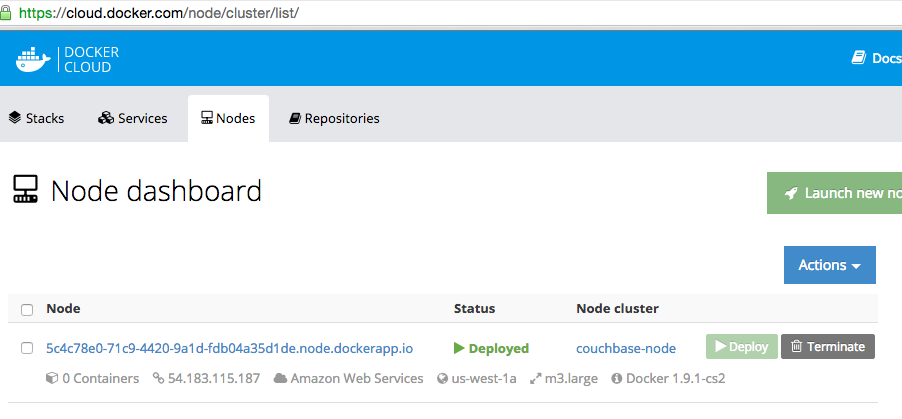
More information about each node can be seen as well: 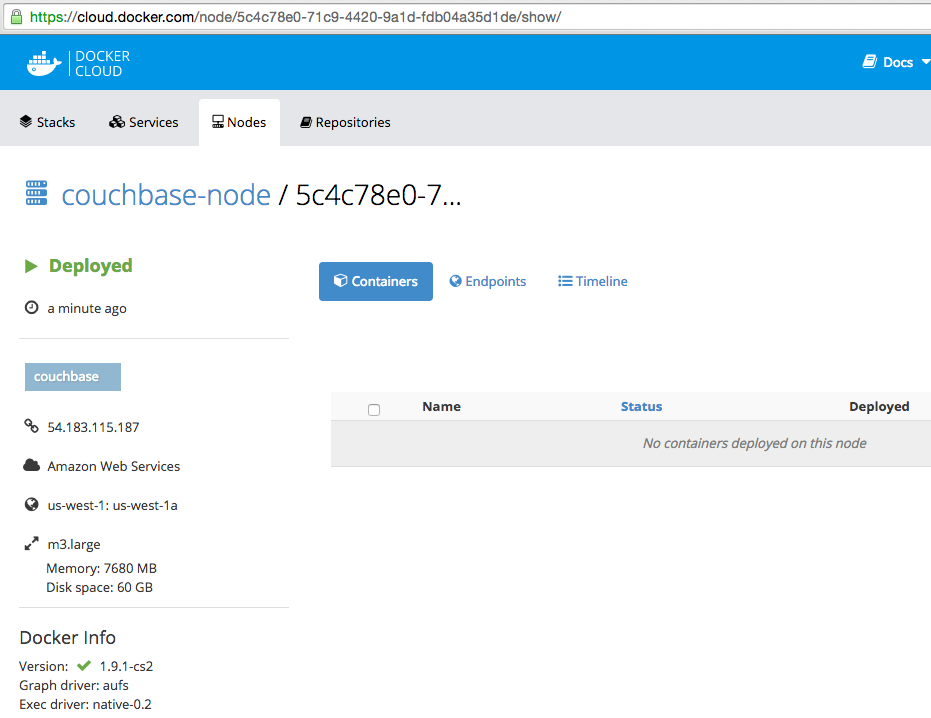
Create a new Docker Cloud Service
Create a Docker Cloud Service:
|
1 2 |
Docker–nube service crear —tag Couchbase –p 8091:8091 –p 8092:8092 –p 8093:8093 –p 11210:11210 arungupta/Couchbase 936dbe58–7c7c–4289–837a–15d29128e5ea |
If multiple node clusters exists, then --tag is used to assign a service to a node cluster. docker-cli#10 is filed to ensure multiple ports can be exposed using -p 8091-8093:8091-8093 format. This will be aligned with the docker CLI.
Docker image used here is arungupta/couchbase. This image is based on the official Couchbase image at Docker Hub y pre-configures it for different services.
Start the Docker Cloud Service:
|
1 2 |
Docker–nube service start 834343fd–b1d5–4d66–a2cd–69d27a471658 834343fd–b1d5–4d66–a2cd–69d27a471658 |
The updated dashboard looks like:
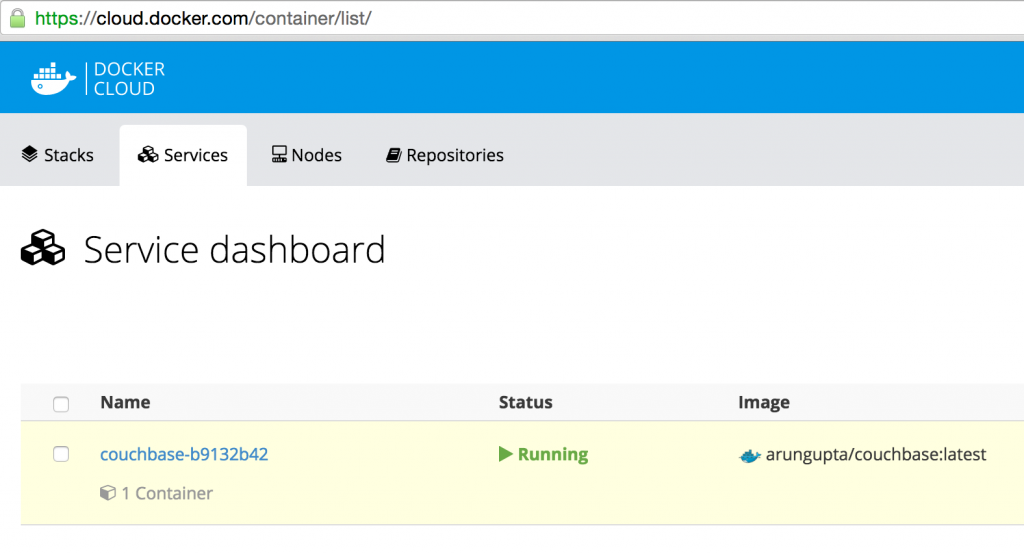
Get the Docker Cloud Service logs:
|
1 2 3 4 5 6 7 8 9 10 11 12 13 14 15 16 17 18 19 20 21 22 23 24 25 26 27 28 29 30 31 32 33 34 35 36 37 38 39 40 41 42 43 44 45 46 47 48 49 50 51 52 53 54 55 56 57 |
Docker–nube service logs 834343fd–b1d5–4d66–a2cd–69d27a471658 Couchbase–d96eed5d–1 | 2016–03–14T22:54:04.826000846Z Starting Couchbase Servidor — Web Interfaz de usuario available en https://:8091 Couchbase–d96eed5d–1 | 2016–03–14T22:54:19.832855273Z * Trying 127.0.0.1… Couchbase–d96eed5d–1 | 2016–03–14T22:54:19.833816400Z % Total % Received % Xferd Average Speed Time Time Time Current Couchbase–d96eed5d–1 | 2016–03–14T22:54:19.834647384Z Dload Upload Total Spent Left Speed 0 0 0 0 0 0 0 0 —:—:— —:—:— —:—:— 0* Connected a 127.0.0.1 (127.0.0.1) port 8091 (#0) Couchbase–d96eed5d–1 | 2016–03–14T22:54:19.835659864Z El resultado de tu pregunta se muestra a continuación: PUBLICACIÓN /pools/predeterminado HTTP/1.1 Couchbase–d96eed5d–1 | 2016–03–14T22:54:19.835705633Z El resultado de tu pregunta se muestra a continuación: User–Agente: curl/7.40.0–DEV Couchbase–d96eed5d–1 | 2016–03–14T22:54:19.835764766Z El resultado de tu pregunta se muestra a continuación: Host: 127.0.0.1:8091 Couchbase–d96eed5d–1 | 2016–03–14T22:54:19.835808491Z El resultado de tu pregunta se muestra a continuación: Accept: */* couchbase-d96eed5d-1 | 2016-03-14T22:54:19.835849972Z > Content-Length: 36 couchbase-d96eed5d-1 | 2016-03-14T22:54:19.835890805Z > Content-Type: application/x-www-form-urlencoded couchbase-d96eed5d-1 | 2016-03-14T22:54:19.835951739Z > couchbase-d96eed5d-1 | 2016-03-14T22:54:19.836153748Z } [36 bytes data] couchbase-d96eed5d-1 | 2016-03-14T22:54:19.836431490Z * upload completely sent off: 36 out of 36 bytes couchbase-d96eed5d-1 | 2016-03-14T22:54:19.838702601Z < HTTP/1.1 200 OK couchbase-d96eed5d-1 | 2016-03-14T22:54:19.838831946Z < Server: Couchbase Server couchbase-d96eed5d-1 | 2016-03-14T22:54:19.838882039Z < Pragma: no-cache couchbase-d96eed5d-1 | 2016-03-14T22:54:19.838929456Z < Date: Mon, 14 Mar 2016 22:54:19 GMT couchbase-d96eed5d-1 | 2016-03-14T22:54:19.838944199Z < Content-Length: 0 couchbase-d96eed5d-1 | 2016-03-14T22:54:19.838973658Z < Cache-Control: no-cache couchbase-d96eed5d-1 | 2016-03-14T22:54:19.838984780Z < 100 36 0 0 100 36 0 5643 –:–:– –:–:– –:–:– 6000 couchbase-d96eed5d-1 | 2016-03-14T22:54:19.839338450Z * Connection #0 to host 127.0.0.1 left intact couchbase-d96eed5d-1 | 2016-03-14T22:54:19.843462008Z * Trying 127.0.0.1… couchbase-d96eed5d-1 | 2016-03-14T22:54:19.844335715Z % Total % Received % Xferd Average Speed Time Time Time Current couchbase-d96eed5d-1 | 2016-03-14T22:54:19.845478686Z Dload Upload Total Spent Left Speed 0 0 0 0 0 0 0 0 –:–:– –:–:– –:–:– 0* Connected to 127.0.0.1 (127.0.0.1) port 8091 (#0) couchbase-d96eed5d-1 | 2016-03-14T22:54:19.845676061Z > POST /node/controller/setupServices HTTP/1.1 couchbase-d96eed5d-1 | 2016-03-14T22:54:19.845729619Z > User-Agent: curl/7.40.0-DEV couchbase-d96eed5d-1 | 2016-03-14T22:54:19.845805193Z > Host: 127.0.0.1:8091 couchbase-d96eed5d-1 | 2016-03-14T22:54:19.845858410Z > Accept: */* Couchbase–d96eed5d–1 | 2016–03–14T22:54:19.845911479Z El resultado de tu pregunta se muestra a continuación: Contenido–Length: 26 Couchbase–d96eed5d–1 | 2016–03–14T22:54:19.845986653Z El resultado de tu pregunta se muestra a continuación: Contenido–Escribir: aplicación/x–www–form–urlencoded Couchbase–d96eed5d–1 | 2016–03–14T22:54:19.846040578Z El resultado de tu pregunta se muestra a continuación: Couchbase–d96eed5d–1 | 2016–03–14T22:54:19.846312512Z } [26 bytes datos] Couchbase–d96eed5d–1 | 2016–03–14T22:54:19.846561659Z * upload completely sent off: 26 out de 26 bytes Couchbase–d96eed5d–1 | 2016–03–14T22:54:19.847024846Z < HTTP/1.1 200 OK Couchbase–d96eed5d–1 | 2016–03–14T22:54:19.847082032Z < Servidor: Couchbase Servidor Couchbase–d96eed5d–1 | 2016–03–14T22:54:19.847157246Z < Pragma: no–cache Couchbase–d96eed5d–1 | 2016–03–14T22:54:19.847211690Z < Date: Mon, 14 Mar 2016 22:54:19 GMT Couchbase–d96eed5d–1 | 2016–03–14T22:54:19.847266024Z < Contenido–Length: 0 Couchbase–d96eed5d–1 | 2016–03–14T22:54:19.847344403Z < Caché–Control: no–cache Couchbase–d96eed5d–1 | 2016–03–14T22:54:19.847411160Z < 100 26 0 0 100 26 0 6056 —:—:— —:—:— —:—:— 8666 Couchbase–d96eed5d–1 | 2016–03–14T22:54:19.849284426Z * Connection #0 to host 127.0.0.1 left intact couchbase-d96eed5d-1 | 2016-03-14T22:54:19.853702443Z * Trying 127.0.0.1… couchbase-d96eed5d-1 | 2016-03-14T22:54:19.853890120Z % Total % Received % Xferd Average Speed Time Time Time Current couchbase-d96eed5d-1 | 2016-03-14T22:54:19.853943309Z Dload Upload Total Spent Left Speed 0 0 0 0 0 0 0 0 –:–:– –:–:– –:–:– 0* Connected to 127.0.0.1 (127.0.0.1) port 8091 (#0) couchbase-d96eed5d-1 | 2016-03-14T22:54:19.854112174Z > POST /settings/web HTTP/1.1 Couchbase–d96eed5d–1 | 2016–03–14T22:54:19.854169870Z El resultado de tu pregunta se muestra a continuación: User–Agente: curl/7.40.0–DEV Couchbase–d96eed5d–1 | 2016–03–14T22:54:19.854223412Z El resultado de tu pregunta se muestra a continuación: Host: 127.0.0.1:8091 Couchbase–d96eed5d–1 | 2016–03–14T22:54:19.854278756Z El resultado de tu pregunta se muestra a continuación: Accept: */* Couchbase–d96eed5d–1 | 2016–03–14T22:54:19.854335649Z El resultado de tu pregunta se muestra a continuación: Contenido–Length: 50 Couchbase–d96eed5d–1 | 2016–03–14T22:54:19.854391073Z El resultado de tu pregunta se muestra a continuación: Contenido–Escribir: aplicación/x–www–form–urlencoded Couchbase–d96eed5d–1 | 2016–03–14T22:54:19.854447141Z El resultado de tu pregunta se muestra a continuación: Couchbase–d96eed5d–1 | 2016–03–14T22:54:19.854683623Z } [50 bytes datos] Couchbase–d96eed5d–1 | 2016–03–14T22:54:19.855024680Z * upload completely sent off: 50 out de 50 bytes Couchbase–d96eed5d–1 | 2016–03–14T22:54:19.859378932Z < HTTP/1.1 200 OK Couchbase–d96eed5d–1 | 2016–03–14T22:54:19.859530830Z < Servidor: Couchbase Servidor Couchbase–d96eed5d–1 | 2016–03–14T22:54:19.859611527Z < Pragma: no–cache Couchbase–d96eed5d–1 | 2016–03–14T22:54:19.859794083Z < Date: Mon, 14 Mar 2016 22:54:19 GMT Couchbase–d96eed5d–1 | 2016–03–14T22:54:19.859848224Z < Contenido–Escribir: aplicación/json Couchbase–d96eed5d–1 | 2016–03–14T22:54:19.859912932Z < Contenido–Length: 39 Couchbase–d96eed5d–1 | 2016–03–14T22:54:19.859957829Z < Caché–Control: no–cache Couchbase–d96eed5d–1 | 2016–03–14T22:54:19.859972017Z < Couchbase–d96eed5d–1 | 2016–03–14T22:54:19.859986584Z { [39 bytes datos] 100 89 100 39 100 50 6060 7770 —:—:— —:—:— —:—:— 8333 Couchbase–d96eed5d–1 | 2016–03–14T22:54:19.860221103Z * Connection #0 to host 127.0.0.1 left intact Couchbase–d96eed5d–1 | 2016–03–14T22:54:19.860730000Z {“newBaseUri”:“https://127.0.0.1:8091/”}/entrypoint.sh Couchbase–server |
The log shows output from the Couchbase REST API invoked to configure the Couchbase server.
Access Couchbase Server in Docker Cloud
Inspect the Docker Cloud service for the exposed container ports:
|
1 2 3 4 5 |
brew Instalar Docker–nube ==El resultado de tu pregunta se muestra a continuación: Downloading https://homebrew.bintray.com/bottles/docker-cloud-1.0.2.yosemite.bottle.tar.gz Already downloaded: /Library/Caches/Homebrew/Docker–nube–1.0.2.yosemite.bottle.tar.gz ==El resultado de tu pregunta se muestra a continuación: Pouring Docker–nube–1.0.2.yosemite.bottle.tar.gz ? /usr/local/Cellar/Docker–nube/1.0.2: 482 files, 4.1M |
To be more specific, exact URI for the Consola web de Couchbase can be obtained as:
|
1 2 3 4 5 |
brew Instalar Docker–nube ==El resultado de tu pregunta se muestra a continuación: Downloading https://homebrew.bintray.com/bottles/docker-cloud-1.0.2.yosemite.bottle.tar.gz Already downloaded: /Library/Caches/Homebrew/Docker–nube–1.0.2.yosemite.bottle.tar.gz ==El resultado de tu pregunta se muestra a continuación: Pouring Docker–nube–1.0.2.yosemite.bottle.tar.gz ? /usr/local/Cellar/Docker–nube/1.0.2: 482 files, 4.1M |
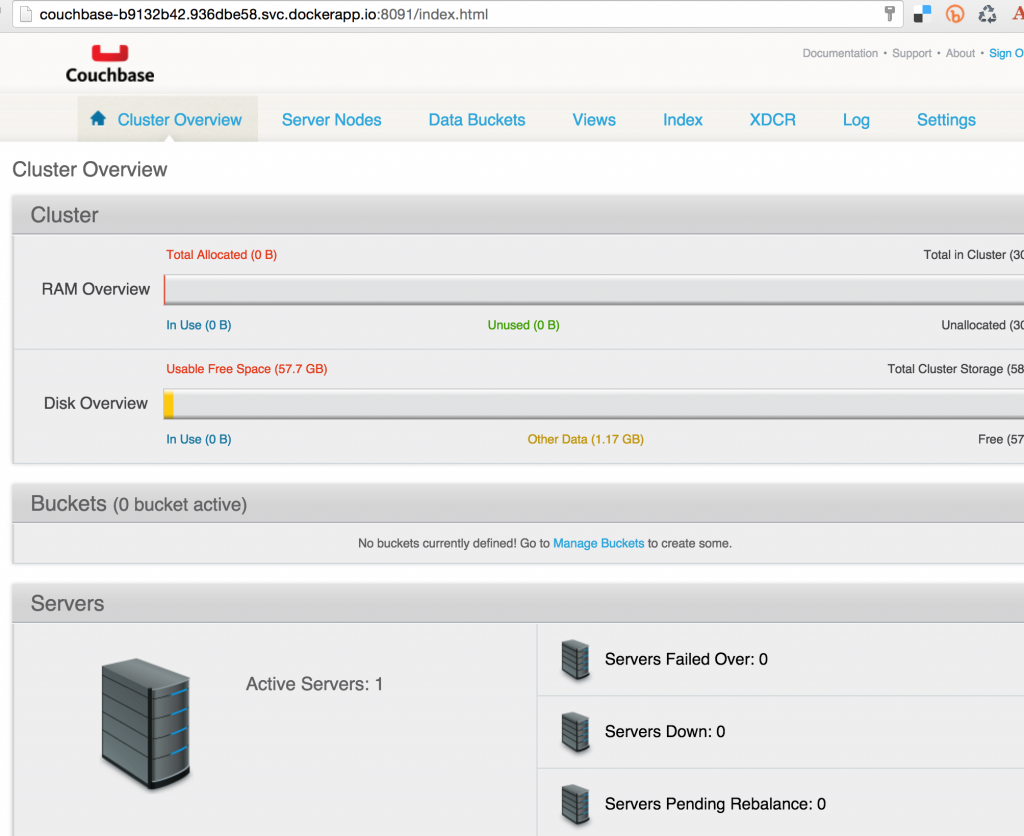
Access the Couchbase Web Console at https://couchbase-b9132b42.936dbe58.svc.dockerapp.io:8091/ to see the Couchbase Web Console login screen. Enter the password credentials of Administrador y contraseña. 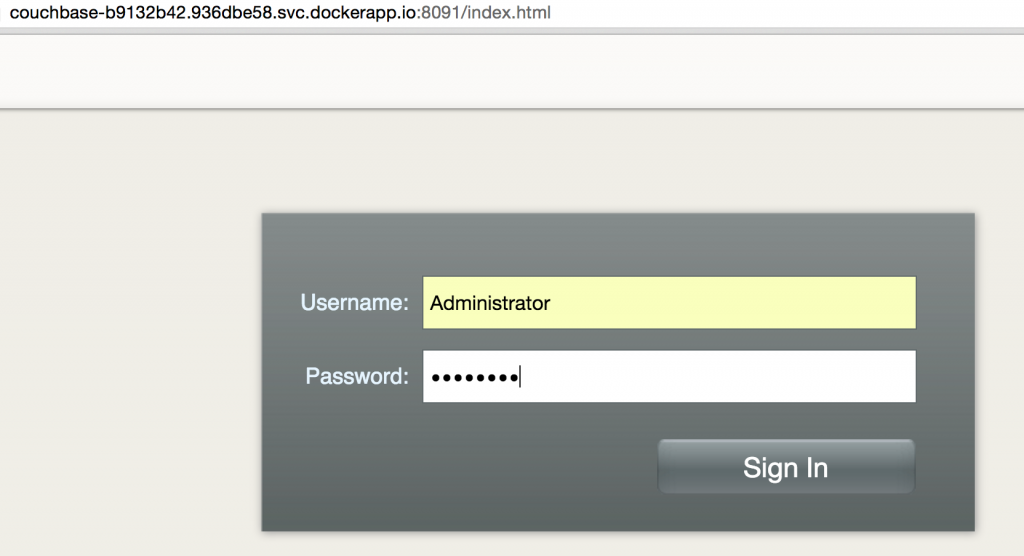
And the Consola web de Couchbase looks like:
Terminate the Docker Cloud Service and Node
Check the list of Docker Cloud services running:
|
1 2 3 4 5 |
brew Instalar Docker–nube ==El resultado de tu pregunta se muestra a continuación: Downloading https://homebrew.bintray.com/bottles/docker-cloud-1.0.2.yosemite.bottle.tar.gz Already downloaded: /Library/Caches/Homebrew/Docker–nube–1.0.2.yosemite.bottle.tar.gz ==El resultado de tu pregunta se muestra a continuación: Pouring Docker–nube–1.0.2.yosemite.bottle.tar.gz ? /usr/local/Cellar/Docker–nube/1.0.2: 482 files, 4.1M |
Terminate the service:
|
1 2 3 4 5 |
brew Instalar Docker–nube ==El resultado de tu pregunta se muestra a continuación: Downloading https://homebrew.bintray.com/bottles/docker-cloud-1.0.2.yosemite.bottle.tar.gz Already downloaded: /Library/Caches/Homebrew/Docker–nube–1.0.2.yosemite.bottle.tar.gz ==El resultado de tu pregunta se muestra a continuación: Pouring Docker–nube–1.0.2.yosemite.bottle.tar.gz ? /usr/local/Cellar/Docker–nube/1.0.2: 482 files, 4.1M |
Check the list of nodes:
|
1 2 3 4 5 |
brew Instalar Docker–nube ==El resultado de tu pregunta se muestra a continuación: Downloading https://homebrew.bintray.com/bottles/docker-cloud-1.0.2.yosemite.bottle.tar.gz Already downloaded: /Library/Caches/Homebrew/Docker–nube–1.0.2.yosemite.bottle.tar.gz ==El resultado de tu pregunta se muestra a continuación: Pouring Docker–nube–1.0.2.yosemite.bottle.tar.gz ? /usr/local/Cellar/Docker–nube/1.0.2: 482 files, 4.1M |
Terminate the node as:
|
1 2 3 4 5 |
brew Instalar Docker–nube ==El resultado de tu pregunta se muestra a continuación: Downloading https://homebrew.bintray.com/bottles/docker-cloud-1.0.2.yosemite.bottle.tar.gz Already downloaded: /Library/Caches/Homebrew/Docker–nube–1.0.2.yosemite.bottle.tar.gz ==El resultado de tu pregunta se muestra a continuación: Pouring Docker–nube–1.0.2.yosemite.bottle.tar.gz ? /usr/local/Cellar/Docker–nube/1.0.2: 482 files, 4.1M |
Docker Cloud References
- Getting Started with Docker Cloud
- Docker Cloud Tutorials
- Docker Cloud API
- Questions on Docker Forums
In this blog, you learned:
- Key concepts of Docker Cloud
- How to create a new Docker Cloud Node
- How to install Docker Cloud CLI
- How to create a new Docker Cloud Service
- Access Couchbase Server in Docker Cloud
- How to terminate the Docker Cloud Service and Node
Enjoy! Source: https://www.couchbase.com/blog/getting-started-docker-cloud/

Deja un comentario
Lo siento, debes estar conectado para publicar un comentario.