

This blog post will explain how to create and scale a Couchbase Cluster using full armor of Docker – Docker Machine, Docker Swarm and Docker Compose. Here is what we’ll do:
- Create a 3-node Docker Swarm Cluster using Docker Machine
- Run a Couchbase instance on two nodes
- Create a cluster
- Rebalance the cluster
- Scale and rebalance the cluster again
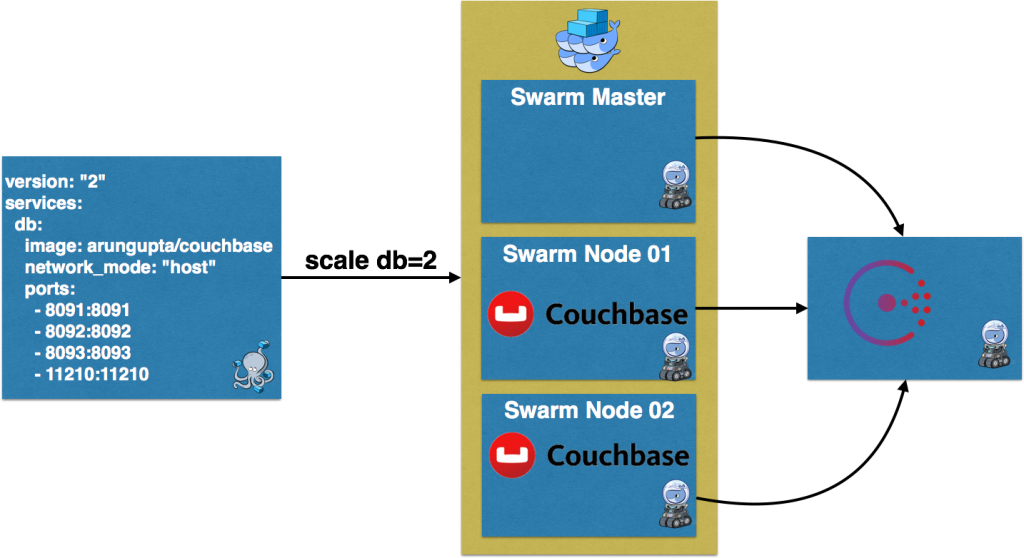
Docker Swarm Cluster using Consul
Create a three-node Docker Swarm cluster using Docker Machine:
|
1 2 3 4 5 6 7 8 9 10 11 12 13 14 15 16 17 18 19 20 21 22 23 24 25 26 27 28 29 30 31 32 33 34 35 36 37 38 39 40 41 42 43 44 45 46 |
# Docker Machine for Consul 도커–machine 만들다 –d virtualbox consul–machine # Start Consul 도커 $(도커–machine 설정 consul–machine) 실행 –d —restart=항상 –p “8500:8500” –h “consul” progrium/consul –서버 –bootstrap # Docker Swarm master 도커–machine 만들다 –d virtualbox —떼 —떼–master —떼–discovery=“consul://$(docker-machine ip consul-machine):8500” —engine–opt=“cluster-store=consul://$(docker-machine ip consul-machine):8500” —engine–opt=“cluster-advertise=eth1:2376” 떼–master # Docker Swarm node-01 도커–machine 만들다 –d virtualbox —떼 —떼–discovery=“consul://$(docker-machine ip consul-machine):8500” —engine–opt=“cluster-store=consul://$(docker-machine ip consul-machine):8500” —engine–opt=“cluster-advertise=eth1:2376” 떼–node–01 # Docker Swarm node-02 도커–machine 만들다 –d virtualbox —virtualbox–disk–size “5000” —떼 —떼–discovery=“consul://$(docker-machine ip consul-machine):8500” —engine–opt=“cluster-store=consul://$(docker-machine ip consul-machine):8500” —engine–opt=“cluster-advertise=eth1:2376” 떼–node–02 # Configure to use Docker Swarm cluster eval “$(docker-machine env –swarm swarm-master)” |
Provision a Swarm cluster with Docker Machine provide more details about why and what’s done in this script. Here is a summary:
- Create a Docker Machine and run Consul for service discovery
- Create three Docker Machines – one for Master and two for Worker nodes.Each machine is configured to be part of a Swarm cluster using
--swarm. It also uses the Consul service discovery specified using--swarm-discovery.
Couchbase Nodes on Docker Swarm
Create two instances of Couchbase using Docker Compose:
|
1 2 3 4 5 6 7 8 9 10 |
버전: “2” services: db: image: arungupta/카우치베이스 network_mode: “host” ports: – 8091:8091 – 8092:8092 – 8093:8093 – 11210:11210 |
arungupta/couchbase image is used here. This image is defined at Couchbase Docker Image. It uses the Official Couchbase Docker Image 추가
configures it as explained:
- Setups memory for Index and Data
- Configures the Couchbase server with Index, Data, and Query service
- Sets up username and password credentials
- Loads the
여행 샘플양동이
Compose file uses host network. This is equivalent to using --net=host on docker run CLI. It allows the container to use the host networking stack. It also limits only a single Couchbase container to run on
a single Docker Machine. So this means that our Couchbase cluster can scale based upon the number of Docker Machines – 3 in our case. The exact command to use this Compose file is:
|
1 2 3 4 5 6 7 8 9 10 11 12 |
도커–compose scale db=2 WARNING: 그 “db” service specifies a port ~에 그 host. 만약 multiple 컨테이너 ~를 위해 이것 service 이다 created ~에 a single host, 그 port will clash. Creating 그리고 starting couchbasedockerswarm_db_1 ... Creating 그리고 starting couchbasedockerswarm_db_2 ... Pulling db (arungupta/카우치베이스:latest)... 떼–node–02: Pulling arungupta/카우치베이스:latest... 떼–master: Pulling arungupta/카우치베이스:latest... 떼–node–01: Pulling arungupta/카우치베이스:latest... Pulling db (arungupta/카우치베이스:latest)... 떼–node–02: Pulling arungupta/카우치베이스:latest... : downloaded Creating 그리고 starting couchbasedockerswarm_db_1 ... done Creating 그리고 starting couchbasedockerswarm_db_2 ... done |
There are three nodes in the Docker Swarm cluster. The default scheduler strategy 이다 spread and so the containers will be spread on different hosts. This is evident
~에 의해 docker ps:
|
1 2 3 4 |
도커 ps CONTAINER 아이디 IMAGE COMMAND CREATED STATUS PORTS NAMES 4c8c149f4e34 arungupta/카우치베이스 “/entrypoint.sh /opt/” 44 seconds ago Up 44 seconds 떼–node–02/couchbasedockerswarm_db_1 d3b6a1dbddb5 arungupta/카우치베이스 “/entrypoint.sh /opt/” 44 seconds ago Up 44 seconds 떼–node–01/couchbasedockerswarm_db_2 |
Note, one Couchbase server is running on swarm-node-01 and another on swarm-node-02. Each server is configured with an administrator username 관리자 and password 비밀번호. Find out IP
address of the Docker Machine:
|
1 2 3 4 5 6 7 |
도커–machine ls NAME ACTIVE DRIVER STATE URL SWARM DOCKER ERRORS consul–machine – virtualbox Running tcp://192.168.99.106:2376 v1.11.1 기본값 – virtualbox Running tcp://192.168.99.100:2376 v1.11.0 떼–master * (떼) virtualbox Running tcp://192.168.99.107:2376 swarm-master (master) v1.11.1 떼–node–01 – virtualbox Running tcp://192.168.99.108:2376 swarm-master v1.11.1 떼–node–02 – virtualbox Running tcp://192.168.99.109:2376 swarm-master v1.11.1 |
If you have jq installed then IP address can be conveniently found as:
|
1 2 |
도커–machine inspect 떼–node–01 | jq “.Driver.IPAddress” “192.168.99.108” |
Couchbase Cluster on Docker Swarm
All Couchbase server nodes are created equal. This allows the Couchbase cluster to truly scale horizontally to meet your growing application demands. Independently running Couchbase nodes can be added to a cluster by invoking the server-add CLI command. This is typically a two step process. The first step is adding one or more nodes. The second step then rebalances the cluster where the data on the existing nodes is rebalanced across the updated cluster. In our case, a single Couchbase
container is running on each Docker Machine. Lets pick IP address of any one Couchbase node, and add IP address of the other node:
|
1 2 3 4 5 6 7 8 9 10 |
도커 실행 –그것 arungupta/카우치베이스 카우치베이스–cli 서버–추가 —클러스터=`도커–machine inspect 떼–node–01 | jq –r “.Driver.IPAddress”`:8091 —사용자 관리자 —비밀번호 비밀번호 —서버–추가=`도커–machine inspect 떼–node–02 | jq –r “.Driver.IPAddress”` —서버–추가–사용자 이름=관리자 —서버–추가–비밀번호=비밀번호 SUCCESS: 서버–추가 192.168.99.109:8091 |
Couchbase Web Console for both the nodes will show a similar output:

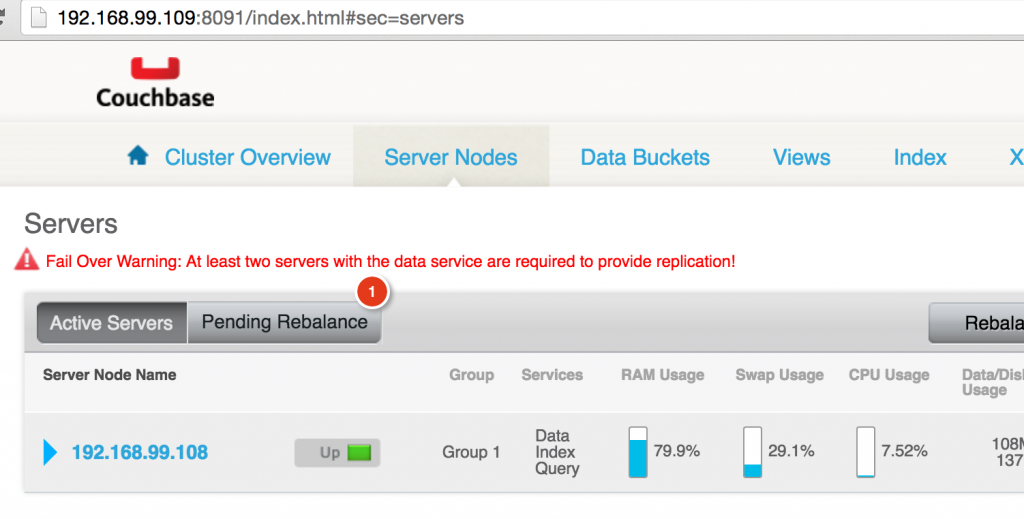
This shows that the two nodes now form a cluster, and needs to be rebalanced.
Rebalance Couchbase Cluster
Now, lets rebalance the cluster:
|
1 2 3 |
도커 실행 –그것 arungupta/카우치베이스 카우치베이스–cli 리밸런싱 —클러스터=`도커–machine inspect 떼–node–01 | jq –r “.Driver.IPAddress”`:8091 —사용자 관리자 —비밀번호 비밀번호 INFO: rebalancing . . . . . . . . . . . . . . . . . . . . . . . . . . . . . . . . . . . . . . . . . . . . . . . . . . . . . . . . . . . . . . . . . . . . . . . . . . . . . . . . . . . . . . . . . . . . . . . . . . . . . . . . . . . . . . . . . . . . . . . . . . . . . . . . . . . . . . . . . . . . . . . . . . . . . . . . . . . . . . . . . . . . . . . . . . . . . . . . . . . . . . . . . . . . . . . . . . . . . . . . . . . . . . . . . . . . . . . . . . . . . . . . . . . . . . . . . . . . . . . . . . . . . . . . . . . . . . . . . . . . . . . . . . . . . . . . . SUCCESS: rebalanced 클러스터 |
Couchbase Web Console will be updated to show that rebalance is happening:

And finally you’ll see a rebalanced cluster:
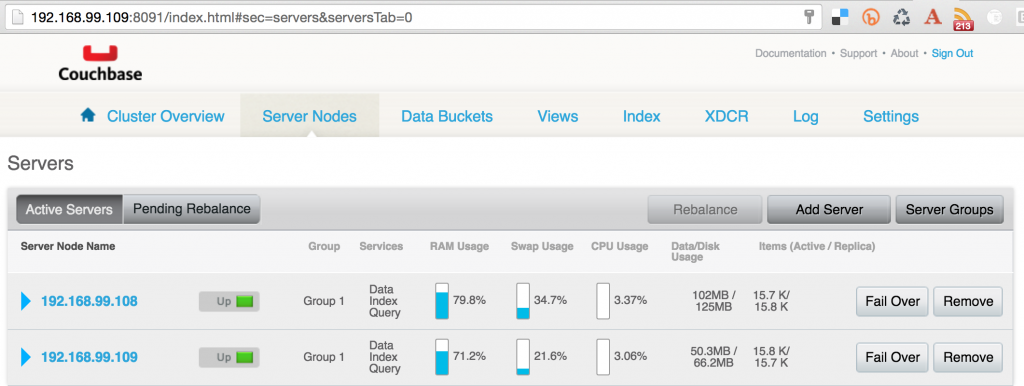
Scale and Rebalance Couchbase Cluster
Scale the Couchbase cluster:
|
1 2 3 |
도커–compose scale db=3 WARNING: 그 “db” service specifies a port ~에 그 host. 만약 multiple 컨테이너 ~를 위해 이것 service 이다 created ~에 a single host, 그 port will clash. Creating 그리고 starting couchbasedockerswarm_db_3 ... done |
Check that the container is running on a different Docker Machine:
|
1 2 3 4 5 |
도커 ps CONTAINER 아이디 IMAGE COMMAND CREATED STATUS PORTS NAMES 02f94e2bbd3e arungupta/카우치베이스 “/entrypoint.sh /opt/” 9 seconds ago Up 8 seconds 떼–master/couchbasedockerswarm_db_3 4c8c149f4e34 arungupta/카우치베이스 “/entrypoint.sh /opt/” 소개 an hour ago Up 소개 an hour 떼–node–02/couchbasedockerswarm_db_1 d3b6a1dbddb5 arungupta/카우치베이스 “/entrypoint.sh /opt/” 소개 an hour ago Up 소개 an hour 떼–node–01/couchbasedockerswarm_db_2 |
As mentioned earlier, scaling a Couchbase cluster is a two-step process. This is so because typically you’ll add multiple servers and then rebalance the cluster. However, in cases where you only need to add a single Couchbase node and then rebalance,
the rebalance command can be used achieve that. In our case, this is done as shown:
0
The rebalanced cluster now looks like:
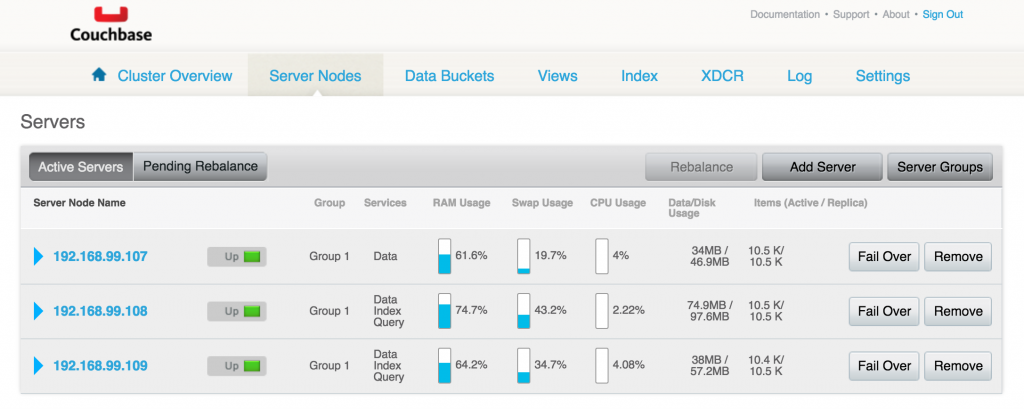
This blog showed how you can easily create and scale a Couchbase Cluster using Docker Swarm, Machine and Compose. Enjoy! Further reading …

댓글 남기기
댓글을 달기 위해서는 로그인해야합니다.