

¿Qué son los PrivateLinks?
PrivateLinks es un servicio de red que permite la conexión privada entre un servicio en la nube y su red virtual. Esta conexión se realiza sin exponer sus datos a la internet pública, lo que mejora la seguridad al mantener el tráfico de red dentro de la red del proveedor de la nube. Al utilizar PrivateLinks, puede garantizar un acceso más seguro y confiable a los recursos en la nube, minimizando el riesgo de amenazas externas y reduciendo la latencia al mantener el tráfico interno dentro de la red del proveedor de la nube.
Los PrivateLinks facilitan la comunicación unidireccional, lo que mejora la seguridad de las conexiones de red al garantizar que el tráfico solo pueda fluir en una sola dirección. Este diseño ayuda a prevenir el acceso no autorizado y la exfiltración de datos, consolidando aún más los beneficios de seguridad de utilizar PrivateLinks para redes en la nube.
Note: XDCR is not compatible with PrivateLinks at the moment.
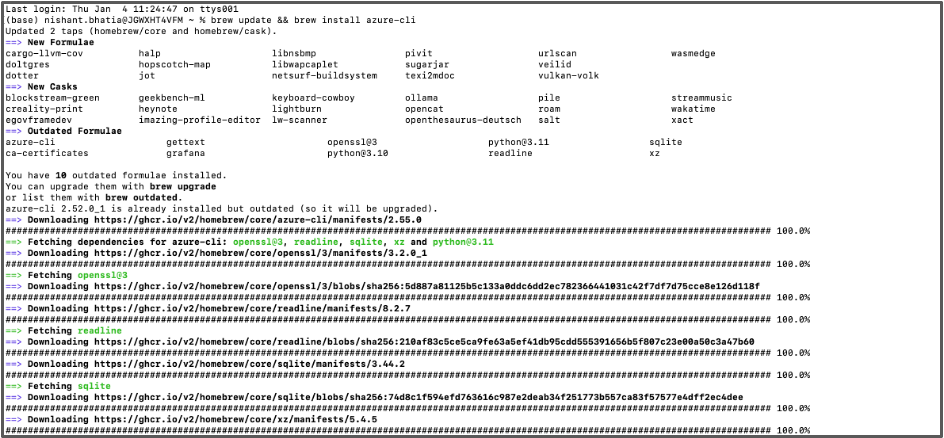
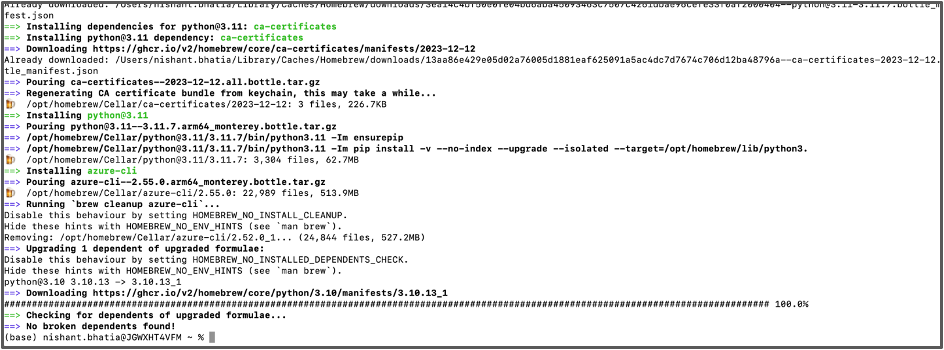
Part 1 – Installing Azure CLI
- Open a terminal and install the Azure CLI using the commands in this link for Mac and Windows:
brew update && brew install azure-cli # command for MacOS
Part 2 – Creating a Resource Group, Virtual Network and Subnet in Azure Cloud
- Go to your Azure home page
- Login to your Azure account using the code below via the terminal:
az login
- Create a new resource group in Azure. Replace the name privatelinkazure and location eastus as desired.
Note: This could be done via the Azure UI, however, it is much cleaner to create one with the Azure CLI:-
az group create --name privatelinkazure --location eastus
-
- Check if the group has been created:
-
az group list --output table
-
- Next step is to create a virtual network and subnet in the resource group we just created.
Replace PLVIRTUALNETWORK, Default with the name as desired. You can keep the address to 10.0.0.0/16 y 10.0.0.0/24:-
az network vnet create --name PLVIRTUALNETWORK --resource-group privatelinkazure --location eastus --address-prefixes 10.0.0.0/16 --subnet-name default --subnet-prefix 10.0.0.0/24
-
Part 3: Capella Configuration
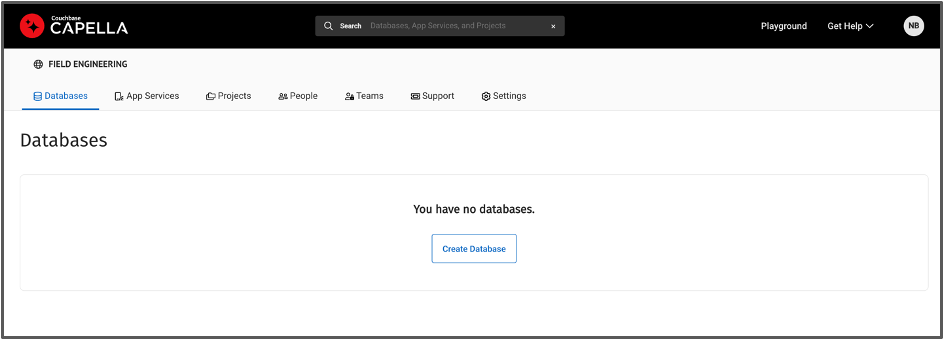
- Login into Capella with your corporate email and credentials.
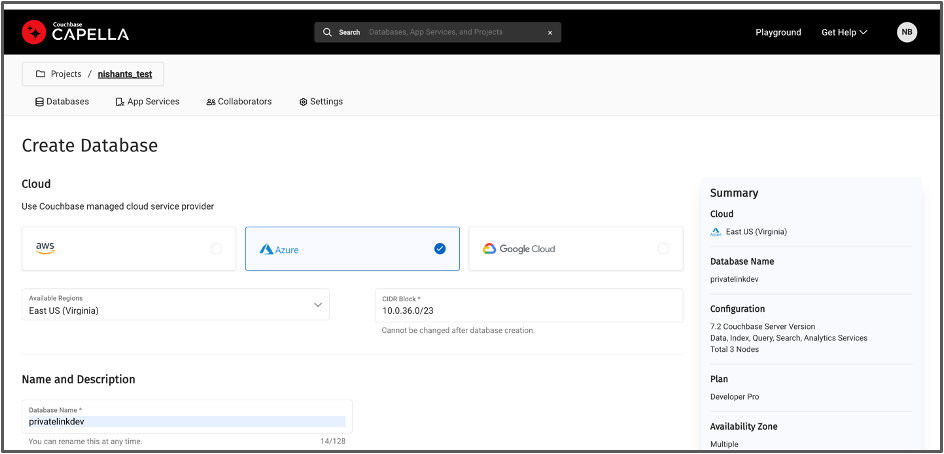
- Within your project, create a database with the following configuration:
- Nube: Azure
- Región: same as the region where you created your Resource Group & Virtual Network
- Nombre of your choice, e.g. here we use Privatelinkdev
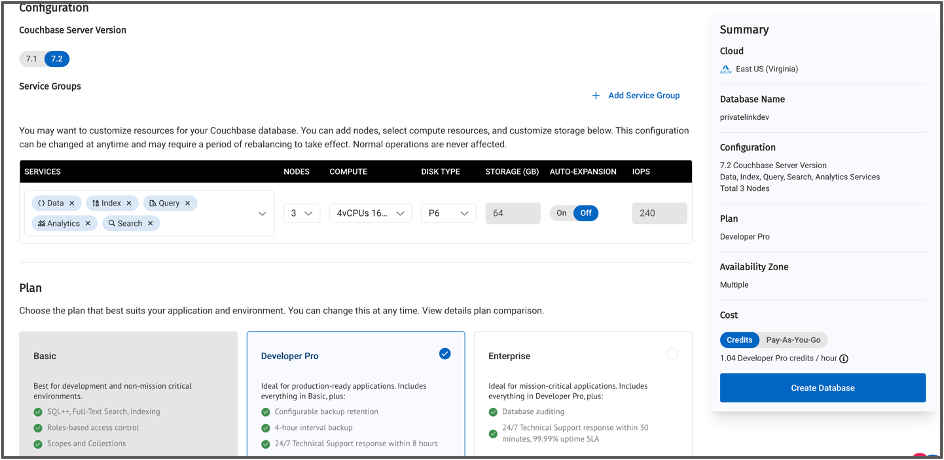
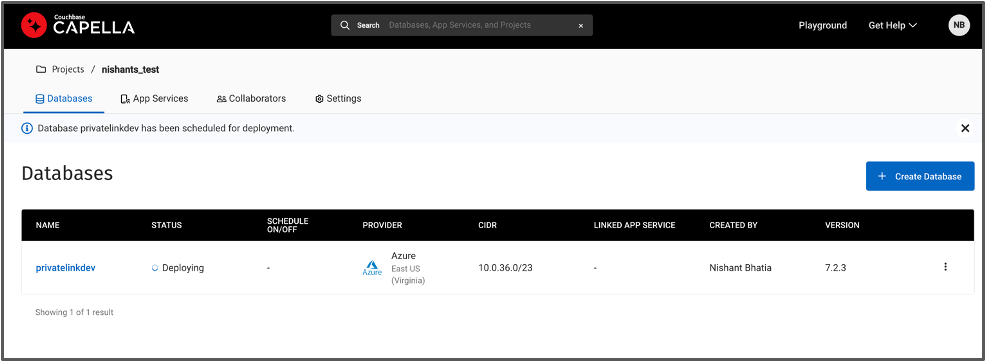
- Una vez que la base de datos Healthy, despliega el travel-sample cubeta
- Abre la base de datos.
- Navegue a Herramientas de datos pestaña.
- En el Importar página, clic Importar bajo el / debajo de travel-sample azulejo.

Part 4: Enable Private Endpoint
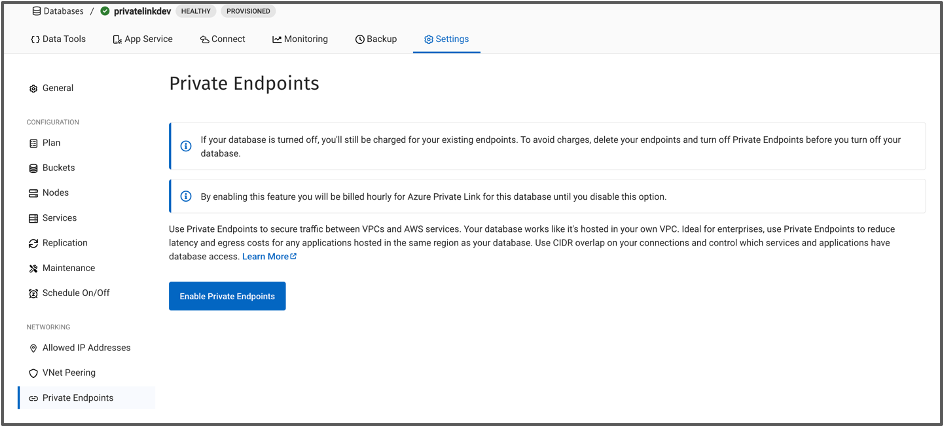
- In your Capella database, open the Settings page, navigate to Private Endpoint and click Enable Private Endpoint.
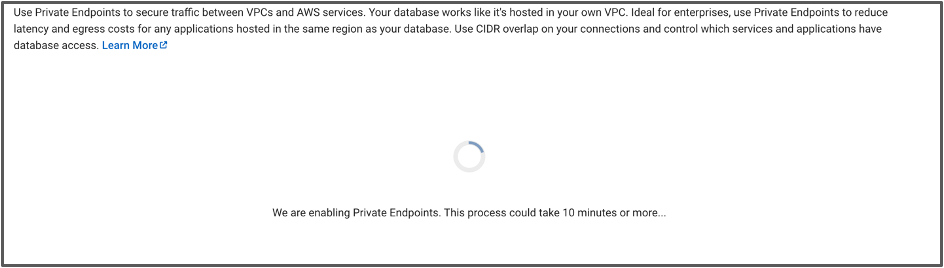
- This action will usually take around 10 minutes to enable Private Endpoint.
- When ready, you should see that the Private Endpoint DNS is now available in the Capella UI. Also notice that Private Endpoints are billed hourly for Azure Private Endpoints for this database until you disable this option.
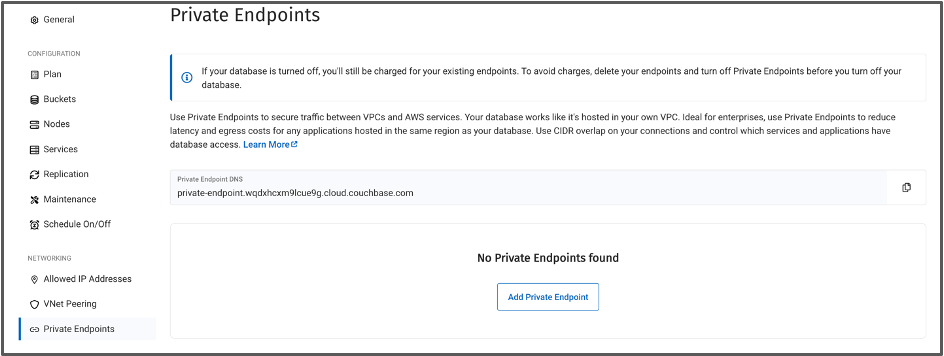
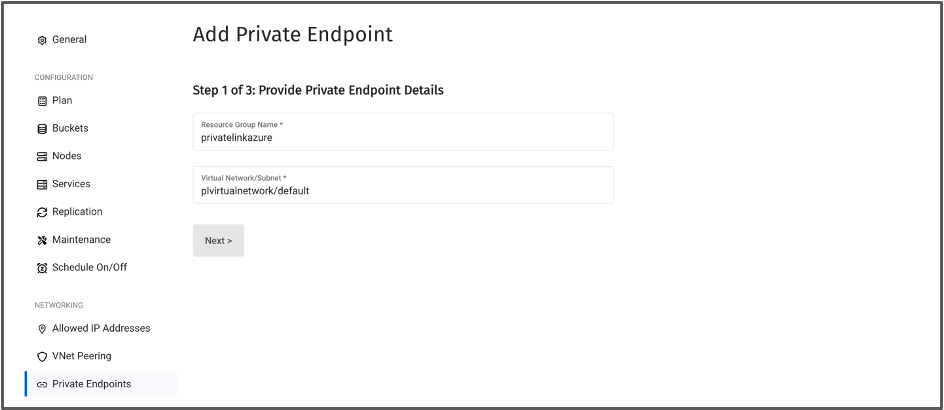
- Hacer clic Add Private Endpoint. Add the Resource Group Name and subnet name that we created earlier. In this case resource group will be privatelinkazure, virtual network will be PLVIRTUALNETWORK and subnet name will be default. Refer to Part 2 above.
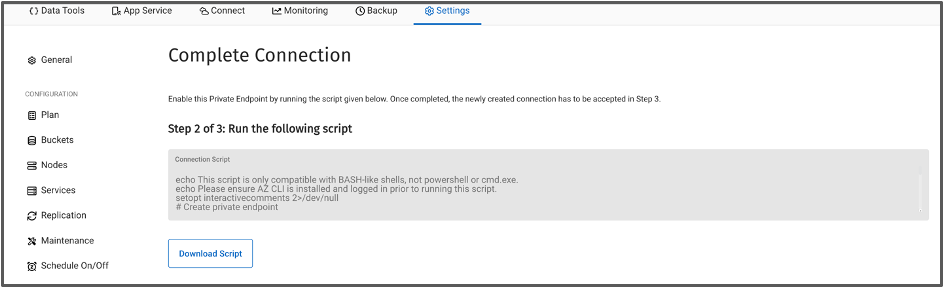
- Download the script and open in Notepad++ or Sublime Text.

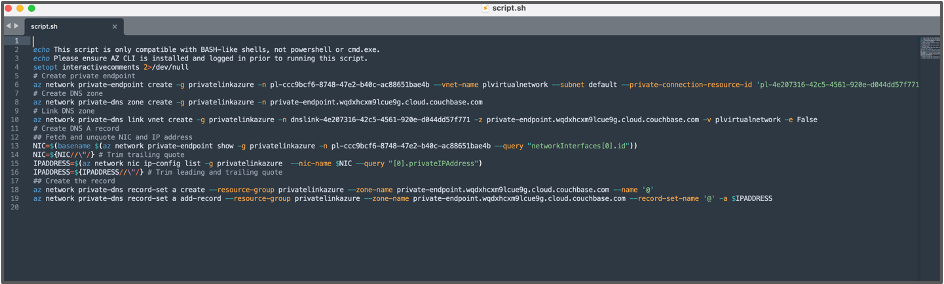
- Open the Azure Terminal again where we created the resource group, virtual network and subnet.
- From shell script we downloaded, run the first three commands starting from:
- Create private endpoint:
az network private-endpoint create -g privatelinkazure -n pl-7330b162-12a1-4695-9317-2ecae322690b --vnet-name PLVIRTUALNETWORK --subnet default --private-connection-resource-id 'pl-4e207316-42c5-4561-920e-d044dd57f771.e520e4d0-fd92-440e-9a82-eabd3562761c.eastus.azure.privatelinkservice' --connection-name pl-7330b162-12a1-4695-9317-2ecae322690b -l eastus --manual-request true
- Create private endpoint:
|
1 2 3 4 5 6 7 8 9 10 11 12 13 14 15 16 17 18 19 20 21 22 23 24 25 26 27 28 29 30 31 32 33 34 35 36 37 38 39 40 41 |
(base) nishant.bhatia@JGWXHT4VFM ~ % az network privado–endpoint crear –g privatelinkazure –n pl–7330b162–12a1–4695–9317–2ecae322690b —vnet–nombre PLVIRTUALNETWORK —subnet default —privado–connection–resource–identificación ‘pl-4e207316-42c5-4561-920e-d044dd57f771.e520e4d0-fd92-440e-9a82-eabd3562761c.eastus.azure.privatelinkservice’ —connection–nombre pl–7330b162–12a1–4695–9317–2ecae322690b –l eastus —manual–solicitud verdadero { “customDnsConfigs”: [], “customNetworkInterfaceName”: “”, “etag”: “W/”465e5e06–5340–4aa9–a5c6–c3fa51c4a51a“”, “id”: “/subscriptions/2192c0ac-2205-4be3-86bf-619230e53f35/resourceGroups/privatelinkazure/providers/Microsoft.Network/privateEndpoints/pl-7330b162-12a1-4695-9317-2ecae322690b”, “ipConfigurations”: [], “location”: “eastus”, “manualPrivateLinkServiceConnections”: [ { “etag”: “W/”465e5e06–5340–4aa9–a5c6–c3fa51c4a51a“”, “id”: “/subscriptions/2192c0ac-2205-4be3-86bf-619230e53f35/resourceGroups/privatelinkazure/providers/Microsoft.Network/privateEndpoints/pl-7330b162-12a1-4695-9317-2ecae322690b/manualPrivateLinkServiceConnections/pl-7330b162-12a1-4695-9317-2ecae322690b”, “nombre”: “pl-7330b162-12a1-4695-9317-2ecae322690b”, “privateLinkServiceConnectionState”: { “actionsRequired”: “None”, “descripción”: “Awaiting Approval”, “status”: “Pending” }, “privateLinkServiceId”: “pl-4e207316-42c5-4561-920e-d044dd57f771.e520e4d0-fd92-440e-9a82-eabd3562761c.eastus.azure.privatelinkservice”, “provisioningState”: “Succeeded”, “resourceGroup”: “privatelinkazure”, “tipo”: “Microsoft.Network/privateEndpoints/manualPrivateLinkServiceConnections” } ], “nombre”: “pl-7330b162-12a1-4695-9317-2ecae322690b”, “networkInterfaces”: [ { “id”: “/subscriptions/2192c0ac-2205-4be3-86bf-619230e53f35/resourceGroups/privatelinkazure/providers/Microsoft.Network/networkInterfaces/pl-7330b162-12a1-4695-9317-2ecae322690b.nic.9cdf1d1d-ad92-4a2a-8391-1396c4f4701a”, “resourceGroup”: “privatelinkazure” } ], “privateLinkServiceConnections”: [], “provisioningState”: “Succeeded”, “resourceGroup”: “privatelinkazure”, “subnet”: { “id”: “/subscriptions/2192c0ac-2205-4be3-86bf-619230e53f35/resourceGroups/privatelinkazure/providers/Microsoft.Network/virtualNetworks/PLVIRTUALNETWORK/subnets/default”, “resourceGroup”: “privatelinkazure” }, “tipo”: “Microsoft.Network/privateEndpoints” } |
- Create DNS zone:
az network private-dns zone create -g privatelinkazure -n private-endpoint.wqdxhcxm9lcue9g.cloud.couchbase.com
|
1 2 3 4 5 6 7 8 9 10 11 12 13 14 15 16 17 |
(base) nishant.bhatia@JGWXHT4VFM ~ % az network privado–dns zone crear –g privatelinkazure –n privado–endpoint.wqdxhcxm9lcue9g.nube.Couchbase.com { “etag”: “8af683b0-e5a6-4abe-a6bf-94ee0261c33b”, “id”: “/subscriptions/2192c0ac-2205-4be3-86bf-619230e53f35/resourceGroups/privatelinkazure/providers/Microsoft.Network/privateDnsZones/private-endpoint.wqdxhcxm9lcue9g.cloud.couchbase.com”, “location”: “global”, “maxNumberOfRecordSets”: 25000, “maxNumberOfVirtualNetworkLinks”: 1000, “maxNumberOfVirtualNetworkLinksWithRegistration”: 100, “nombre”: “private-endpoint.wqdxhcxm9lcue9g.cloud.couchbase.com”, “numberOfRecordSets”: 1, “numberOfVirtualNetworkLinks”: 0, “numberOfVirtualNetworkLinksWithRegistration”: 0, “provisioningState”: “Succeeded”, “resourceGroup”: “privatelinkazure”, “tipo”: “Microsoft.Network/privateDnsZones” } |
- Link DNS zone:
az network private-dns link vnet create -g privatelinkazure -n dnslink-4e207316-42c5-4561-920e-d044dd57f771 -z private-endpoint.wqdxhcxm9lcue9g.cloud.couchbase.com -v PLVIRTUALNETWORK -e False
|
1 2 3 4 5 6 7 8 9 10 11 12 13 14 15 16 17 |
(base) nishant.bhatia@JGWXHT4VFM ~ % az network privado–dns link vnet crear –g privatelinkazure –n dnslink–4e207316–42c5–4561–920e–d044dd57f771 –z privado–endpoint.wqdxhcxm9lcue9g.nube.Couchbase.com –v PLVIRTUALNETWORK –e False { “etag”: “”540b14b1–0000–0100–0000–65983fc10000“”, “id”: “/subscriptions/2192c0ac-2205-4be3-86bf-619230e53f35/resourceGroups/privatelinkazure/providers/Microsoft.Network/privateDnsZones/private-endpoint.wqdxhcxm9lcue9g.cloud.couchbase.com/virtualNetworkLinks/dnslink-4e207316-42c5-4561-920e-d044dd57f771”, “location”: “global”, “nombre”: “dnslink-4e207316-42c5-4561-920e-d044dd57f771”, “provisioningState”: “Succeeded”, “registrationEnabled”: falso, “resourceGroup”: “privatelinkazure”, “tipo”: “Microsoft.Network/privateDnsZones/virtualNetworkLinks”, “virtualNetwork”: { “id”: “/subscriptions/2192c0ac-2205-4be3-86bf-619230e53f35/resourceGroups/privatelinkazure/providers/Microsoft.Network/virtualNetworks/PLVIRTUALNETWORK”, “resourceGroup”: “privatelinkazure” }, “virtualNetworkLinkState”: “Completed” } |
Part 4: Accept Pending Connection and verify endpoint
- Head over to the Capella UI again and accept the pending connection. Once the connection has been established, you will see a Linked status.
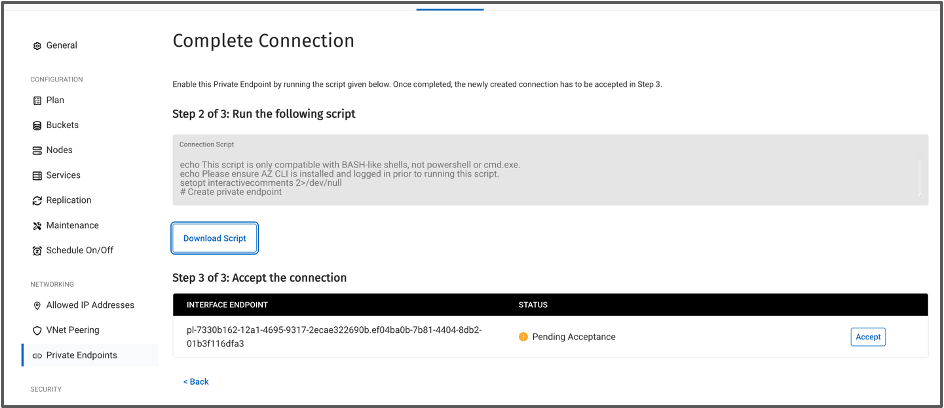
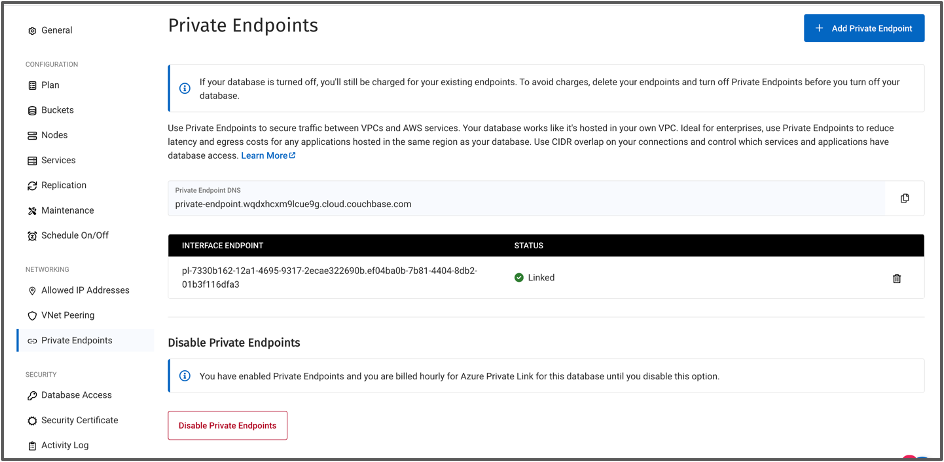
- Copy paste the interface endpoint from Capella UI in a notepad. In this case:
pl-7330b162-12a1-4695-9317-2ecae322690b.ef04ba0b-7b81-4404-8db2-01b3f116dfa3 - In the below code, replace the interface endpoint with your endpoint until the period “.” In this case:
pl-7330b162-12a1-4695-9317-2ecae322690baz network private-endpoint show --name pl-7330b162-12a1-4695-9317-2ecae322690b --resource-group privatelinkazure
|
1 2 3 4 5 6 7 8 9 10 11 12 13 14 15 16 17 18 19 20 21 22 23 24 25 26 27 28 29 30 31 32 33 34 35 36 37 38 39 40 |
(base) nishant.bhatia@JGWXHT4VFM ~ % az network privado–endpoint mostrar —nombre pl–7330b162–12a1–4695–9317–2ecae322690b —resource–group privatelinkazure { “customDnsConfigs”: [], “customNetworkInterfaceName”: “”, “etag”: “W/”0b317ee7–e04e–4255–aa0c–b58ccd8fc5ff“”, “id”: “/subscriptions/2192c0ac-2205-4be3-86bf-619230e53f35/resourceGroups/privatelinkazure/providers/Microsoft.Network/privateEndpoints/pl-7330b162-12a1-4695-9317-2ecae322690b”, “ipConfigurations”: [], “location”: “eastus”, “manualPrivateLinkServiceConnections”: [ { “etag”: “W/”0b317ee7–e04e–4255–aa0c–b58ccd8fc5ff“”, “id”: “/subscriptions/2192c0ac-2205-4be3-86bf-619230e53f35/resourceGroups/privatelinkazure/providers/Microsoft.Network/privateEndpoints/pl-7330b162-12a1-4695-9317-2ecae322690b/manualPrivateLinkServiceConnections/pl-7330b162-12a1-4695-9317-2ecae322690b”, “nombre”: “pl-7330b162-12a1-4695-9317-2ecae322690b”, “privateLinkServiceConnectionState”: { “actionsRequired”: “”, “descripción”: “”, “status”: “Approved” }, “privateLinkServiceId”: “pl-4e207316-42c5-4561-920e-d044dd57f771.e520e4d0-fd92-440e-9a82-eabd3562761c.eastus.azure.privatelinkservice”, “provisioningState”: “Succeeded”, “resourceGroup”: “privatelinkazure”, “tipo”: “Microsoft.Network/privateEndpoints/manualPrivateLinkServiceConnections” } ], “nombre”: “pl-7330b162-12a1-4695-9317-2ecae322690b”, “networkInterfaces”: [ { “id”: “/subscriptions/2192c0ac-2205-4be3-86bf-619230e53f35/resourceGroups/privatelinkazure/providers/Microsoft.Network/networkInterfaces/pl-7330b162-12a1-4695-9317-2ecae322690b.nic.9cdf1d1d-ad92-4a2a-8391-1396c4f4701a”, “resourceGroup”: “privatelinkazure” } ], “privateLinkServiceConnections”: [], “provisioningState”: “Succeeded”, “resourceGroup”: “privatelinkazure”, “subnet”: { “id”: “/subscriptions/2192c0ac-2205-4be3-86bf-619230e53f35/resourceGroups/privatelinkazure/providers/Microsoft.Network/virtualNetworks/PLVIRTUALNETWORK/subnets/default”, “resourceGroup”: “privatelinkazure” }, “tipo”: “Microsoft.Network/privateEndpoints” } |
You have now established a private connection between your Azure VPC and Couchbase Capella using a Private Link!
Conclusión
Azure Private Link offers a secure and efficient method for connecting to Couchbase Capella, ensuring that your data remains protected from external threats by keeping traffic within Microsoft’s private network. This setup eliminates exposure to the public internet, thereby significantly reducing the attack surface. Azure Private Link provides only uni-directional communication, ensuring that data flows securely from your resources to Couchbase Capella without any reverse path. Additionally, Azure Private Link provides consistent network performance, leveraging Microsoft’s global backbone network to deliver low-latency and reliable connectivity. This makes Azure Private Link an essential component for secure and performant database operations in the cloud.
Documentación

Deja un comentario
Lo siento, debes estar conectado para publicar un comentario.