
Microsoft Office 2016 with Excel and Native JSON Processing
Microsoft Office and Excel is the de-facto reporting environment for many of us. One great advantage of Excel is its native JSON support and built-in programmable transformation engine. Excel can simply directly talk to Couchbase Server and report on the data. No ODBC or JDBC driver required! Lets see how you do that!
Reporting in Excel with Couchbase Server in 3 Steps
Lets walk through the 3 steps to get your Couchbase Server (version 4 or later) data visualized in Excel. I’ll be using Microsoft Office 2016 – Excel 2016 on Windows for the excercise.
|
1 |
Note -로 Mac/OSx Users: Unfortunately Office ~에 Mac does not come ~와 함께 그 capability -로 가져오기 제이슨 데이터. |
#1 Get Some Sample Data:
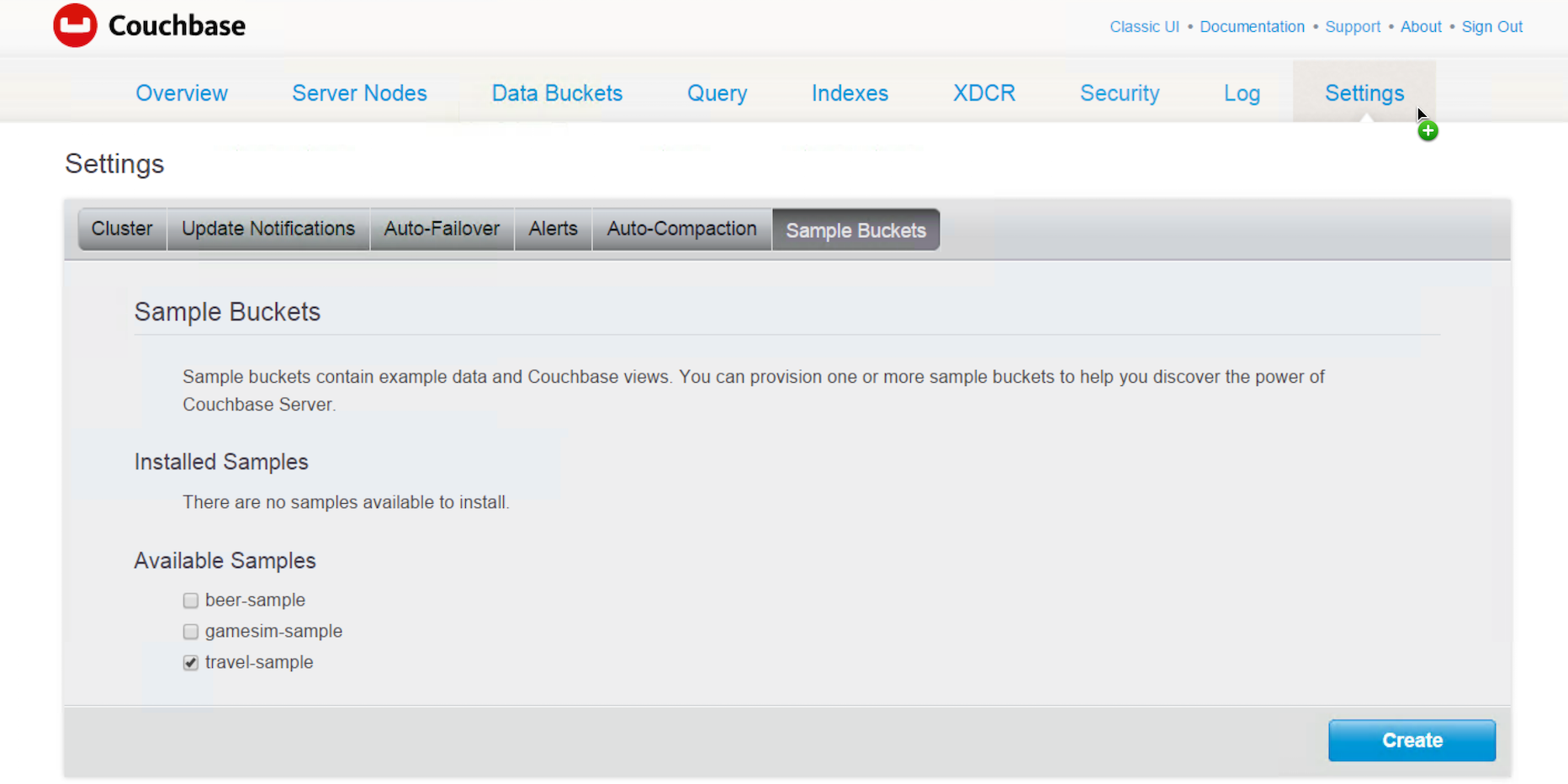
I am using the travel-sample bucket that comes with Couchbase Server 4. Install this dataset using the “settings” tab in admin console or during installation. You will be able to follow along with the examples.
#2 Query through the N1QL REST API:
I will use a fairly simple query for the sample: This query returns full list of all airlines with their total flights to each destination airport.
|
1 2 3 4 5 |
선택 a.이름, r.destinationairport, count(a.이름) as total_flights ~에서 `travel–sample` r JOIN `travel–sample` a ON KEYS r.airlineid 어디 r.유형 =“route” AND a.유형=“항공사” GROUP BY r.destinationairport, a.이름 주문 에 의해 r.destinationairport |
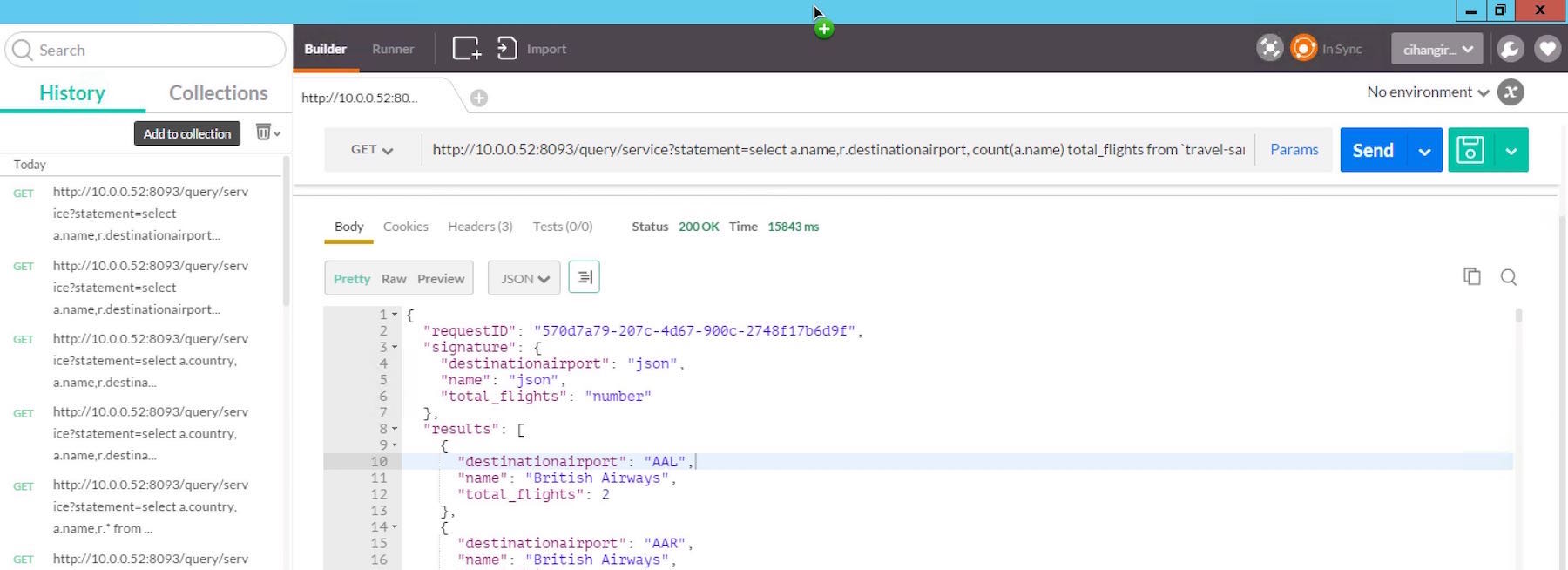
To connect Excel with N1QL. We will use the N1QL REST API to execute the query. Some may not know this but N1QL comes with a REST API that takes in an ad-hoc statement. N1QL REST API is documented 여기 and you can use the JSON aware tool of your choice to directly hit this API. My tool of choice is 우체부 (available on the chrome marketplace as well). N1QL REST API combined with postman gives me the full visability to what’s travelling over the wire.
In the following figure, I am hitting a local cluster node on port 8093 with the above query with postman.
We will pass the encoded URL to Excel next and it looks like this:
|
1 |
https://10.0.0.52:8093/질의/service?진술서=선택%20a.이름,r.destinationairport,%20count(a.이름)%20total_flights%20from%20`travel–sample`%20r%20join%20`travel–sample`%20a%20on%20keys%20r.airlineid%20where%20r.유형%20=%22route%22%20and%20a.유형=%22airline%22%20group%20by%20r.destinationairport,%20a.이름%20order%20by%20r.destinationairport |
#3 Submit & Transform Data in Excel:
Next, you need to fire up the desktop version of Excel 2016. To pass the REST call for N1QL to Excel, you need to go to the data tab, choose “New Query > From Other Sources > From Web” to get to import Couchbase Server JSON data into Excel.

- Enter in the URL above and wait for the data to show up and click OK.

- Now we will go through a set of transformations to prepare our data for visualization.
- Once the results are streamed into Excel, you will see the JSON attributes that come back from N1QL. Drill into “results” by clicking the “List” link in the screen.
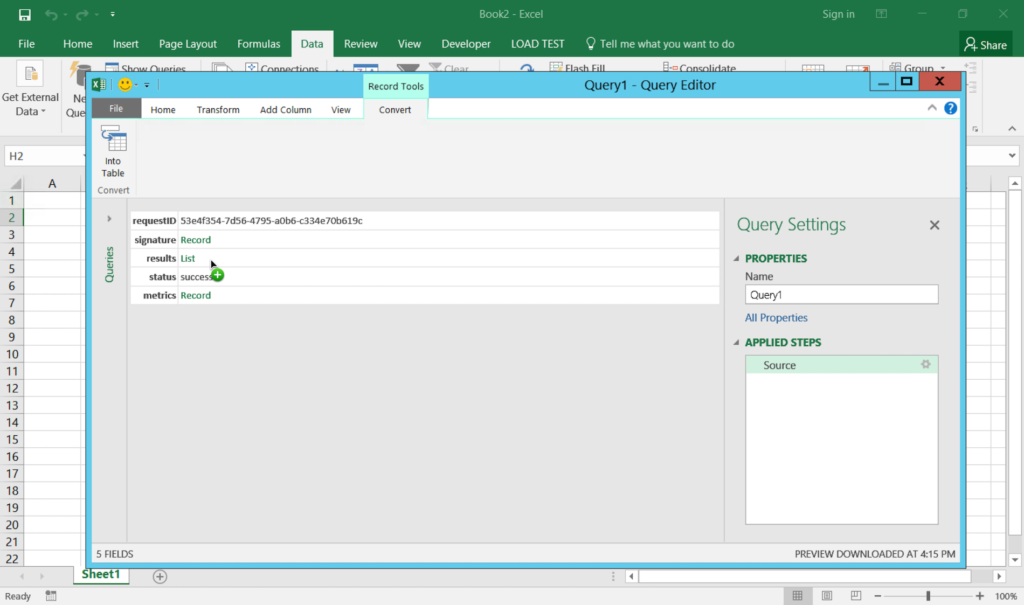
- We will use the table transform to shape our JSON. Click on “To Table” menu at the top.
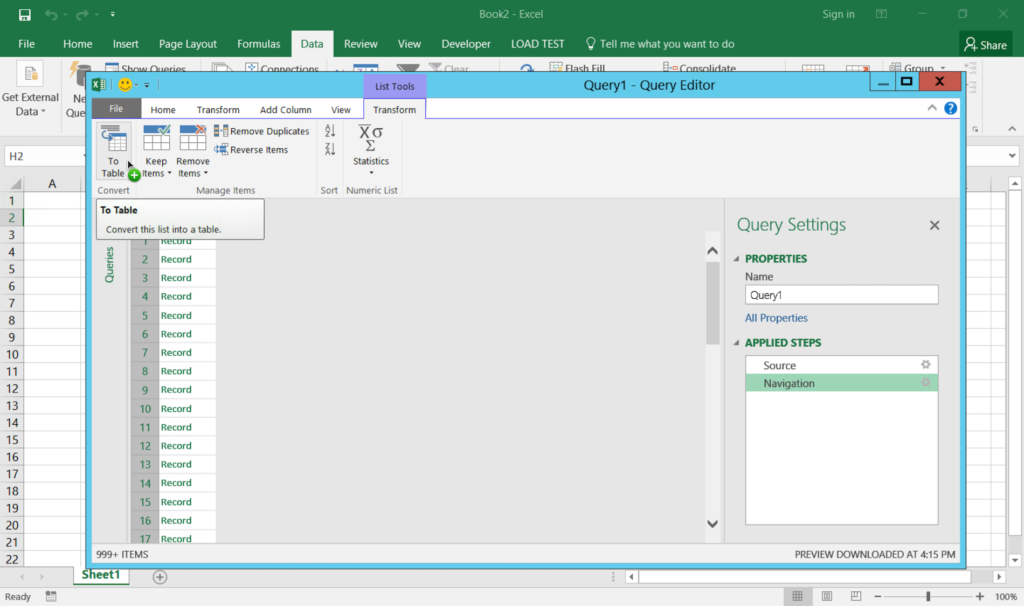
- Do not specify a delimiter and click OK.
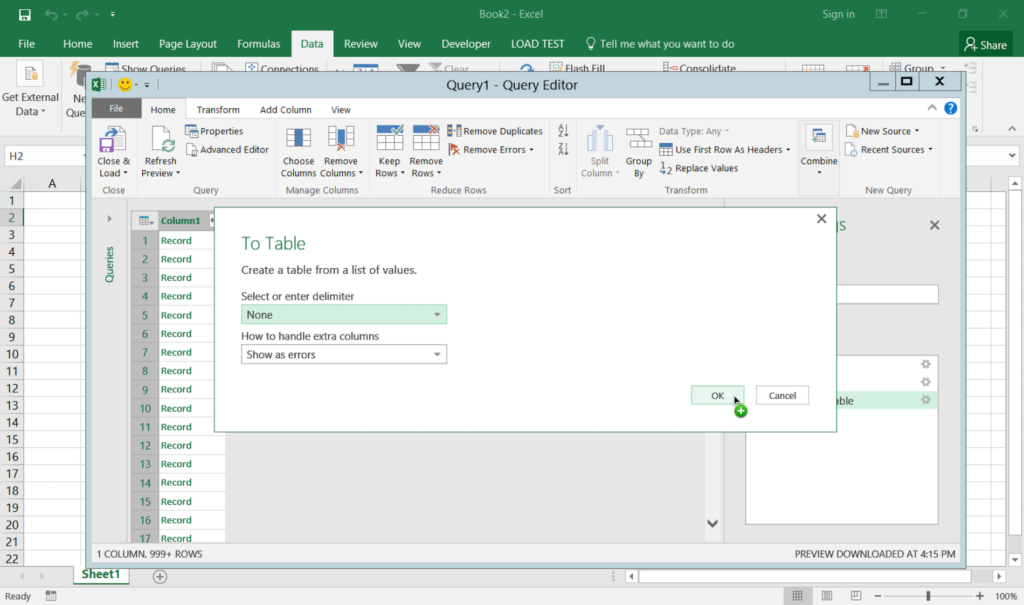
- Next, you will click the little “split” icon at the top of column in the single column grid to split the attributes in JSON into seperate columns in the table.
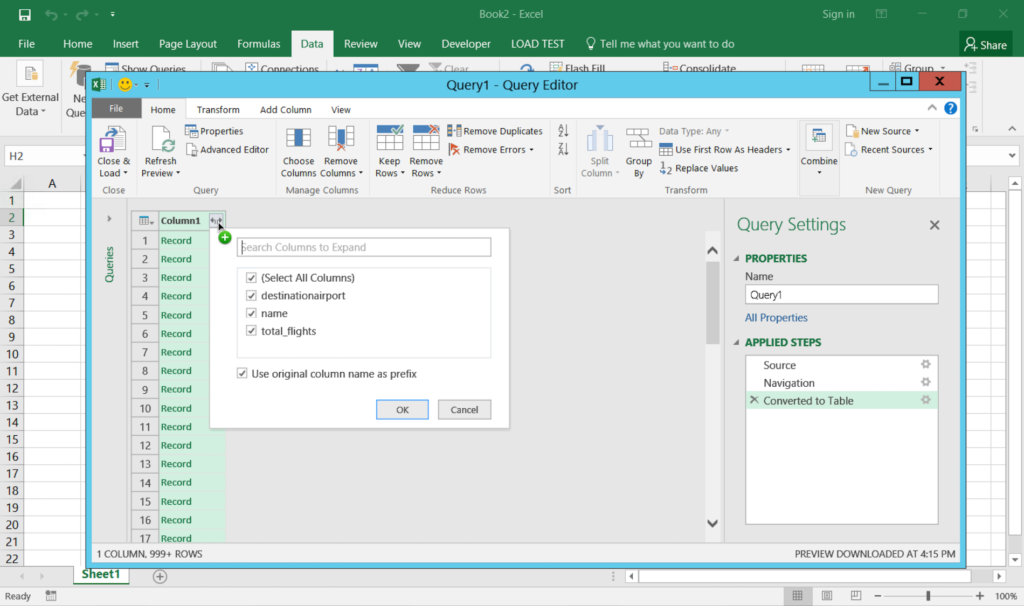
- Once you click ok, this is what the completed data transformation should look like… Simply click “Close & Apply” at the top left corner
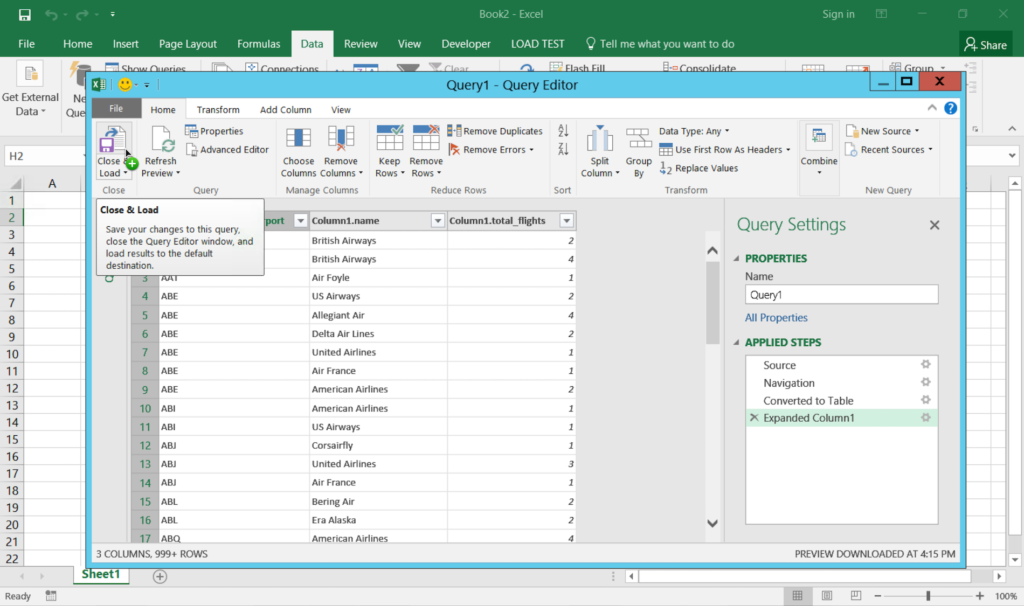
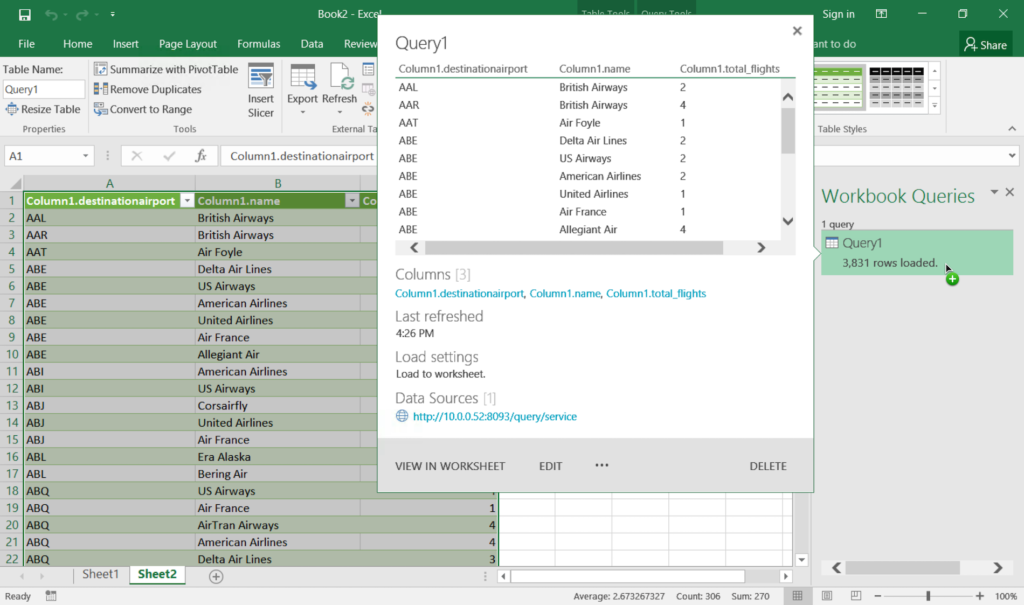
- You should now have your Couchbase Server data imported into Excel into a table. Now your Excel adventure begins…
Before I close, I want to mention that you can still use an ODBC/JDBC based experience with Couchbase Server v4. Here is the link to download free ODBC and JDBC Drivers for Couchbase Server.
However… What I am seeing in todays world is, majority of the new data that is generated and stored is in JSON. So existing and new reporting and data visualization platforms like Excel, PowerBI and others are adding powerful support around JSON. I expect this experience to get simpler over time.
Happy Hacking.
cihan biyikoglu – director product management
작가

2개의 응답
-
Cdata Software has developed The Couchbase Excel Add-In, which is a powerful tool that allows you to connect with live Couchbase NoSQL databases, directly from Microsoft Excel. Use Excel to read, write, and update Couchbase. Perfect for mass imports / exports / updates, data cleansing & de-duplication, Excel based data analysis, and more!
Here are some of my favorite features:
Easy import of data into Excel
Easy to save changes back
Ability to filter and sort, not just a raw import
Establishes a live, refreshable connection, not just a static dump
Modify and delete records
Quickly export and backup data
Operate on data with Charts and Pivot Tables
The robust features of the Excel Add-In are easy to use, thanks to out-of-the-box functionality. You can install the Add-In, configure the connection to your data source, and, thanks to the point-and-click interface, immediately begin working with your data.While the default options allow you to access and manipulate your data without writing any code, the Add-In is supported in macros/VBA functions. This gives you robust, granular control of your data on top of the generic queries possible through the Excel Add-In user interface.
-
Later part of the document is missing with the images


댓글 남기기
댓글을 달기 위해서는 로그인해야합니다.