
소개
This post marks the second in a series about the 코우치베이스 모바일 stack. You can find the first post 여기. It covers installing 카우치베이스 서버. In this post, we’ll examine part of the 카우치베이스 웹 콘솔 (CWC).
배경
To get comfortable with the whole stack, it’s great to install and run everything on your development machine. In this series of posts, I’ll walk through the steps get to started with each component. I’ll show how to do a little extra exploring along the way, too.
I’ll only do minimal configuration. This is not intended to explain what you need for a production environment. I assume you’re familiar with some basics of NoSQL, have some understanding of Couchbase, and know how to build apps in something like Java, Android, or iOS. If you want to read up on NoSQL databases or Couchbase, you can find lots of resources on the 카우치베이스 site.
Couchbase is open-source. Everything I’ll use here is free to try out. See the end of the post for more resources if you need help.
Exploring Couchbase Server
Now that we have an instance up and running1, we can try a few things out. Couchbase Server has a built-in web-based administration interface (카우치베이스 웹 콘솔) and a large number of command line tools. You can also perform interesting manipulations through its REST interfaces easily. This gives us three ways to delve in without writing any code. In this post, we’ll start with CWC.
The Couchbase Web Console
We saw the Overview panel of the Web Console during our initial installation. The interface has nine main panels in total. For the purpose of understanding Couchbase Mobile, we only need to concern ourselves with the Data Buckets panel.
Data Buckets
Click on the Data Buckets tab in the navigation bar. If you loaded the beer sample bucket, click on the arrow to the left of the bucket tile “beer-sample”. You should see information similar to what’s shown in the following screenshot.
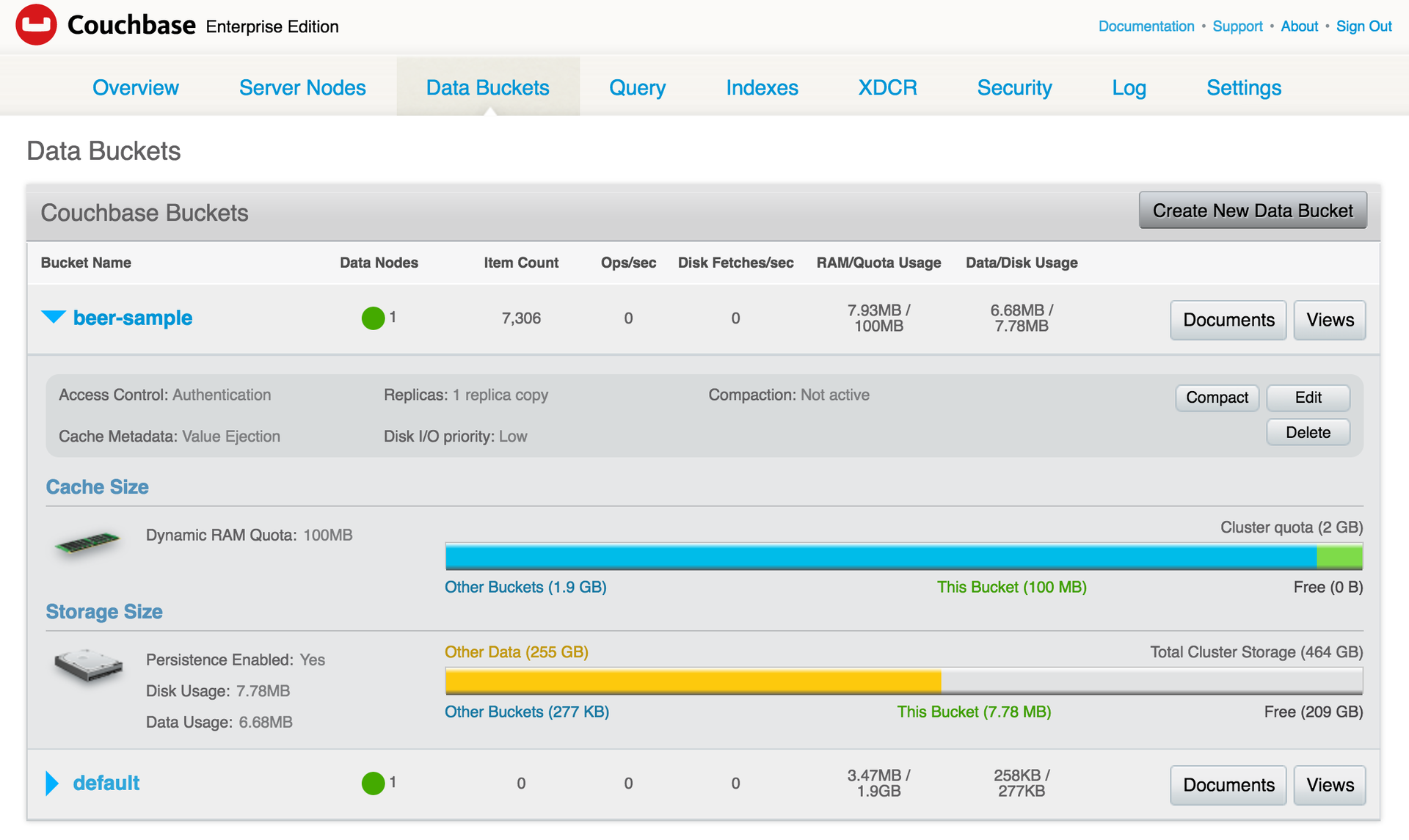
This gives general information about the bucket. You can see some of the parameters used during setup reflected here.
Documents
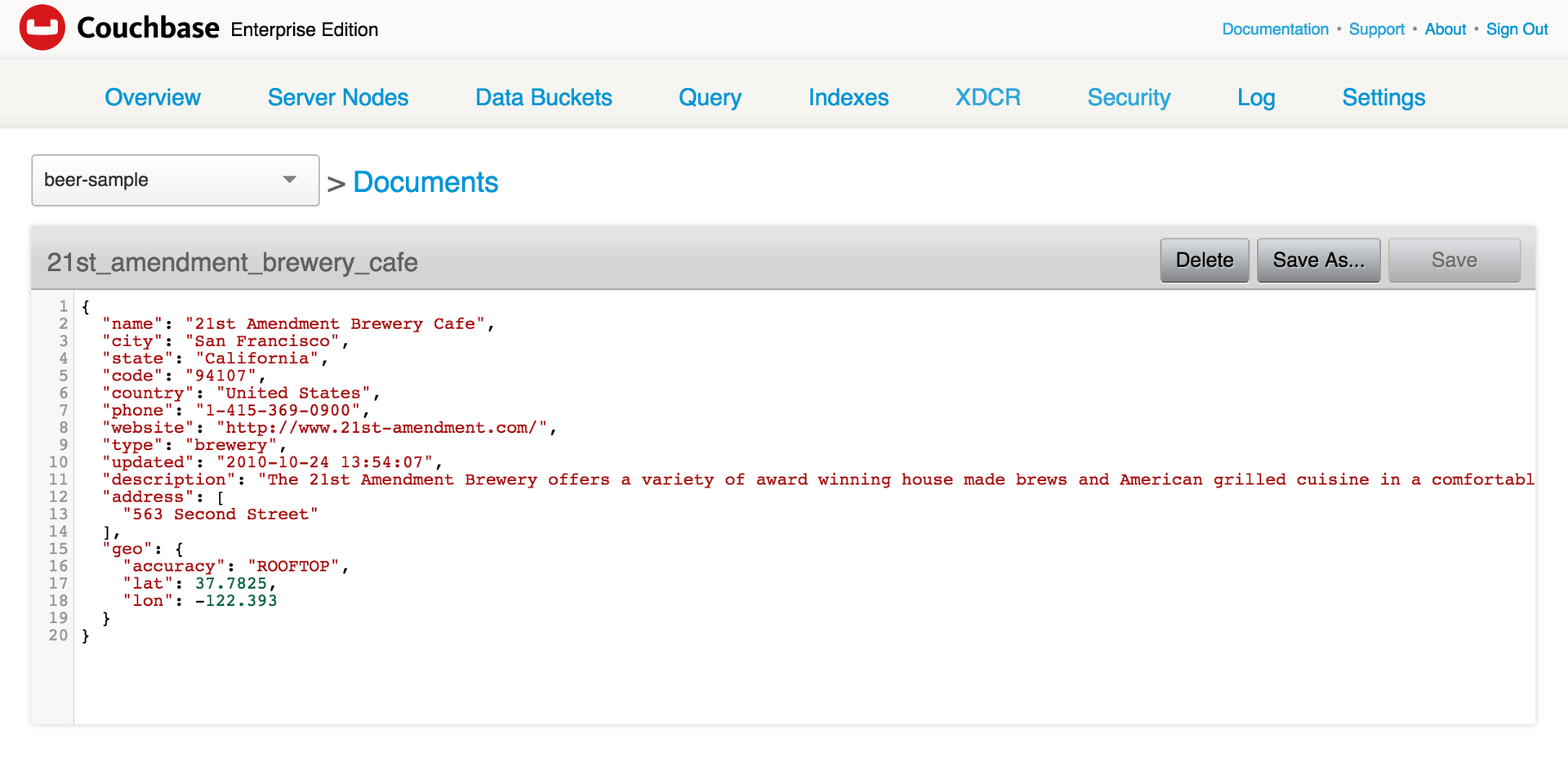
In the upper right corner, you’ll see two buttons, “Documents” and “Views”. Select “Documents”. This brings up a list of documents in the bucket. Each entry shows a limited version of the document id and contents.

Click on the document id to bring up the full document contents. You can also directly edit and save changes to documents here.
Views
Views define a static index in your database. Couchbase achieves this using a map/reduce approach.
Every time a document gets created or updated, Couchbase processes it through the map/reduce code associated with a View. In Couchbase, you write these functions in JavaScript. You choose what values to output for your index.
Since the index gets created at the time of processing the document, we call this a “static” index. This speeds up queries. In contrast, with Couchbase, you can use the N1QL query language to create queries on the fly. N1QL queries are overall more powerful and flexible, but will typically be slower to execute.
You can read more about Views 여기. I emphasize Views because Couchbase Lite uses them for queries. Currently Couchbase Lite doesn’t support N1QL.
The beer sample has two Views already defined. To see them, click on the Data Buckets tab again. Now, instead of clicking “Documents” in the upper right, click “Views”. You’ll see the following information.
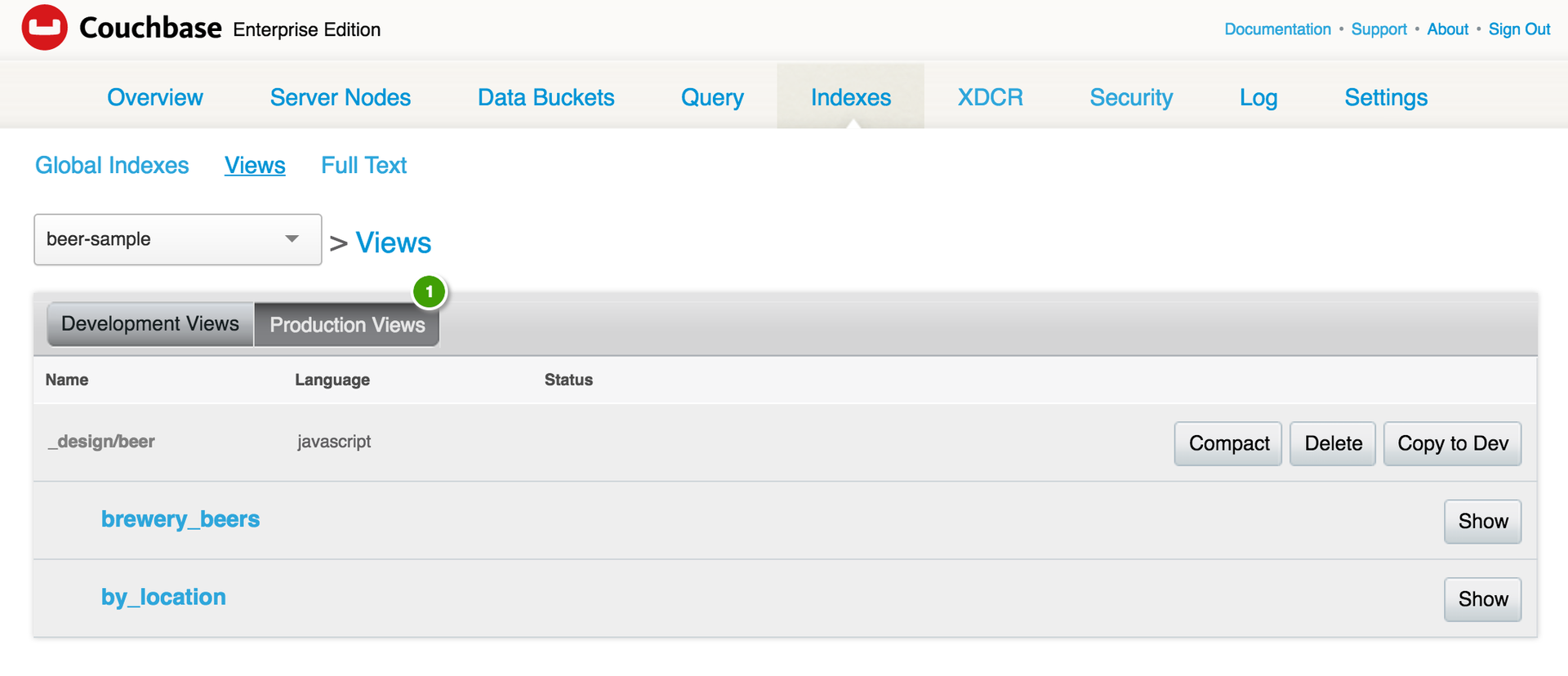
Click on “Production Views”. In the list of Views, click “brewery_beers” to get to this page.

To see the index created by the View, click “Show Results” to the right, above the third pane shown.
To try out Views yourself, you can copy a Production View and modify it. Jump back two steps to the introduction to Views. Look for the “Copy to Dev” button. Click that. Hit “Copy” in the dialog that pops up. You’ll be taken to “Development Views” where you can edit views and documents and test out the results.
Next Steps
In the next post in this series I’ll show some ways to work with Couchbase Server from the command line. After that I’ll move on to Sync Gateway. Then we’ll look at a sample app using Couchbase Lite. Finally, we’ll use that sample app to loop back and see how everything ties together.
[buttongroup][button style=”btn-link btn-lg” icon=”fa fa-arrow-left” align=”left” iconcolor=”#dd3333″ type=”link” target=”false” title=”Previous: Installing Couchbase Server” link=”https://www.couchbase.com/blog/getting-comfortable-with-couchbase-mobile-installing-couchbase-server/” linkrel=””][button style=”btn-link btn-lg” icon=”fa fa-arrow-right” align=”left” iconcolor=”#dd3333″ type=”link” target=”false” title=”Next: Couchbase Server via the Command Line” link=”https://www.couchbase.com/blog/getting-comfortable-couchbase-mobile-couchbase-server-command-line/” linkrel=””][/buttongroup]
추신
저희 쪽에서 더 많은 자료를 확인해 보세요 개발자 포털 그리고 트위터에서도 팔로우하세요 @CouchbaseDev.
당사는 다음 곳에 질문을 게시할 수 있습니다. 포럼. 그리고 우리는 적극적으로 참여합니다 스택 오버플로.
저를 개인적으로 팔로우하실 수 있습니다 @HodGreeley
작가

1개의 응답
-
[…] Next: Couchbase Web Console […]
댓글 남기기
댓글을 달기 위해서는 로그인해야합니다.